Dashboard Cards
The integration brings its own cards for your dashboards. There's nothing to install: they come with the integration, appear in the card picker with a preview and a visual editor (YAML works as well), and you only pick your home.
- Forecast Card: the price now, the coming hours, the parts of the day and today and tomorrow, like a weather forecast. Tap anything for its details.
- Now Card: only the price now and what to make of it, as a tile, a gauge or a clock of the coming twelve hours. Made for a main dashboard; a tap can open the forecast card or the chart card in a window.
- Chart Card: the price curve, read by moving a cursor across it: outlook, today, tomorrow and both days, in 15 or 60 minutes, with the price in a line or a ring on top.
- Price Outlook Tile Feature: the coming hours as small bars in a tile you already have.
The cards also open each other in a window (see Cards inside cards): a now tile on your main dashboard can open the whole forecast with a tap and the price chart from a small icon.
For a complete dashboard built around them, with price charts, see Dashboard Examples.
<home_name> is a placeholder for your Tibber home display name in Home Assistant. Entity IDs are derived from the displayed name (localized), so the exact slug may differ. Can't find a sensor? Use the Entity Reference (All Languages) to search by name in your language.
Forecast Card
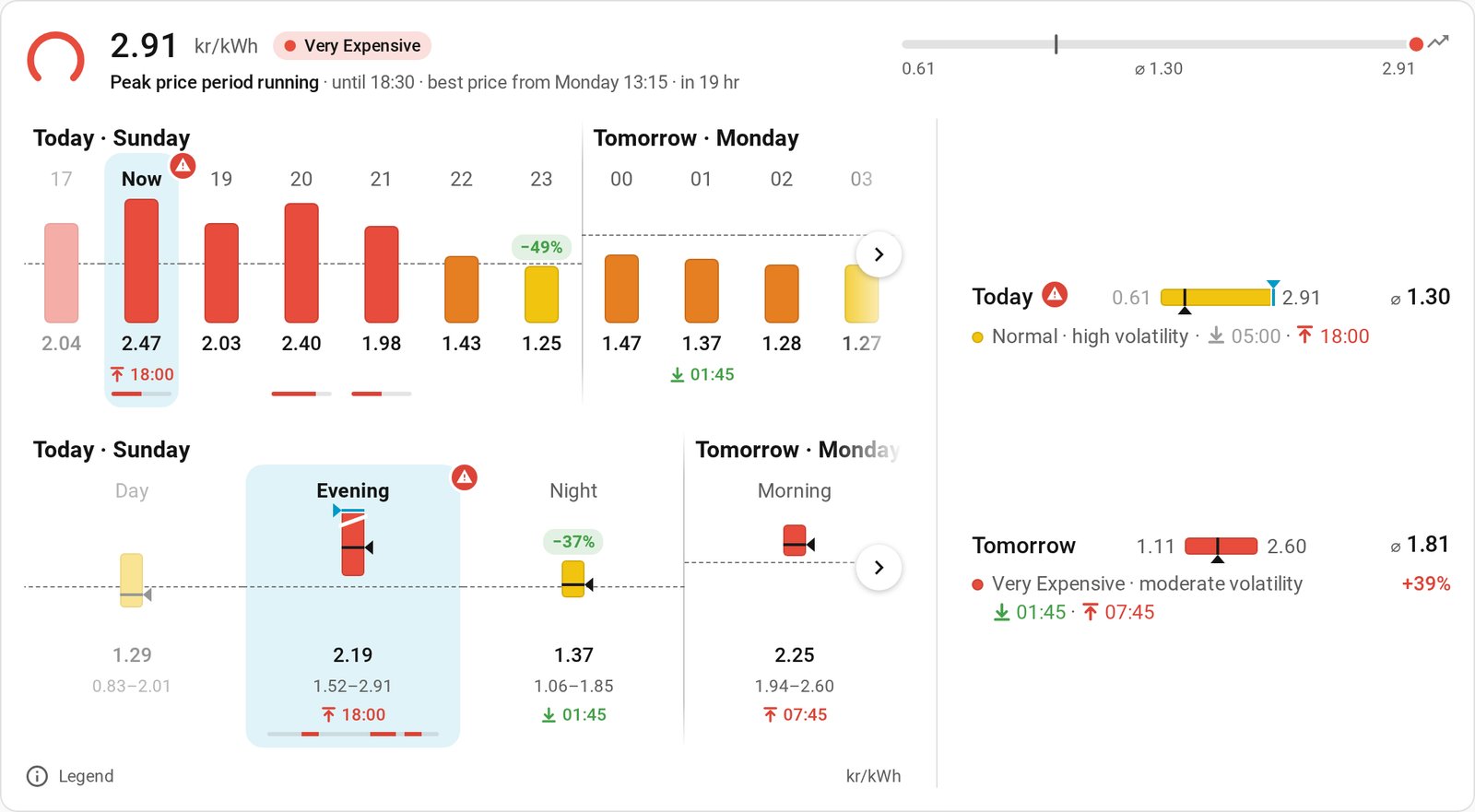
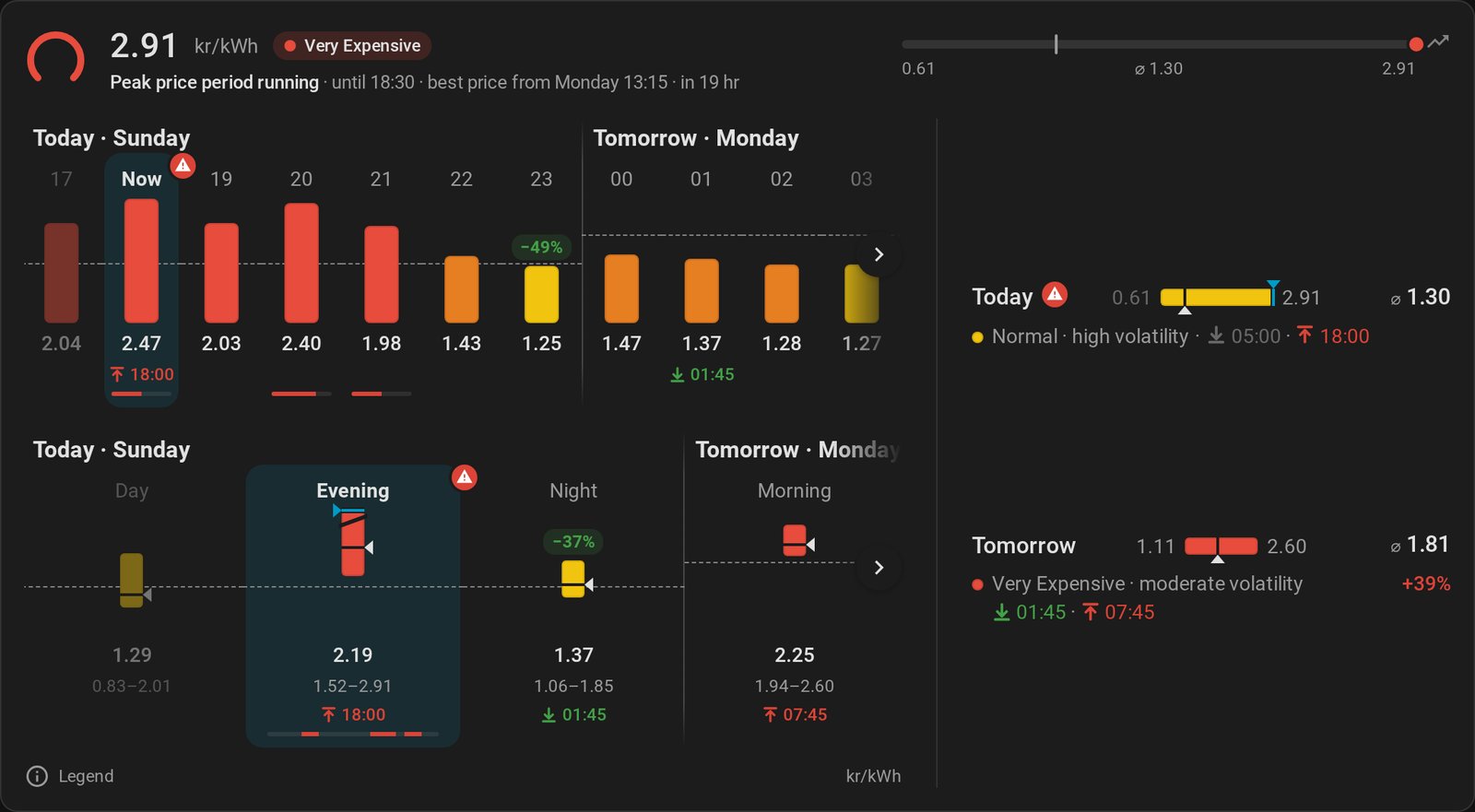
The integration brings its own card: Tibber Prices Forecast shows the coming hours and the parts of the day like a weather forecast, with the price level as color (the same colors as the charts) and the average price. Best and peak price periods are underlined. There's nothing to install: the card comes with the integration and appears in the card picker, with a preview and a visual editor (YAML works as well).
type: custom:tibber-prices-forecast-card
device_id: YOUR_HOME_DEVICE_ID # Your home; the visual editor offers only Tibber Prices homes
show_title: false # Optional: true shows a title inside the card, top left like Home Assistant's own cards
title: Strompreise # Optional: your own title (empty: “Electricity prices” in the card's language)
price_unit: auto # Optional: auto (as set in the integration), base (€/kWh) or subunit (ct/kWh)
average: mean # Optional: the average of the prices shown and the strips' dashed line: auto (as set for the ⌀ sensors), mean (default) or median
show: # Optional, default: all four, in this order (shown in the order you list them)
  - now # The current price on today's scale and what to make of it
  - hours # 48 hours: up to the end of the known prices, and yesterday's until tomorrow's are out
  - day_parts # Morning, day, evening, night: four at a time, from the one before the running one
  - days # Today and tomorrow
layout: detailed # Optional: detailed (all sections, default) or compact (one section with a switch)
appearance: auto # Optional: auto (light or dark as Home Assistant shows it, default), light or dark (always)
scroll_buttons: both # Optional: both (default; the left one only once scrolled back), forward, back or none
hide_legend: false # Optional: true hides the Legend button
hide_unit: false # Optional: true hides the price unit (without both, there's no footer)
now: # Optional: options of the line on top
  now_decimals: entity # Optional: decimals of the current price: entity (as set for the price entity, default) or 0–4
  hide: [] # Optional: gauge, verdict, trend, day_span
  hide_details: false # Optional: true makes a tap run tap_action instead of opening the details of now
hours: # Optional: options of the hours section
  now_decimals: entity # Optional: decimals of the current price in Now's details: entity (as set for the price entity, default) or 0–4
  hide: [] # Optional: details to leave out: reference, tomorrow, weekday, cheapest, periods, badge, low, high, steps
  hide_details: false # Optional: true makes a tap run tap_action instead of opening the hour's details
day_parts: # Optional: options of the parts of the day
  now_decimals: entity
  hide: [] # Optional: pointer, now, range, reference, tomorrow, weekday, cheapest, periods, badge, low, high
  hide_details: false
days: # Optional: options of the day rows
  shown: both # Optional: both (default), today or tomorrow
  tomorrow_pending: placeholder # Optional: until tomorrow's prices are in, placeholder (say when they usually come, default) or hide
  now_decimals: entity # Optional: for the price now in today's details
  hide: [] # Optional: compare, pointer, now, level, volatility, badge, low, high
  hide_details: false
chart_button: false # Optional: true shows an icon top right that opens the chart card in a window
chart_icon: mdi:chart-line # Optional: that icon
window_width: medium # Optional: how wide that window is: narrow, medium (default), wide or full (on phones always full screen)
chart: # Optional, with chart_button: the chart card's options, exactly as for the card on its own (its home is this card's)
  views: [outlook, today, tomorrow, two_days]
action_button: false # Optional: true runs the card's actions only from a button in the footer
action_button_text: "" # Optional: its label; empty fits the action (e.g. More info)
action_button_position: bottom # Optional: bottom (default) or top
tap_action: # Optional, default: none (like hold and double tap)
  action: more-info
hold_action: # Optional
  action: navigate
  navigation_path: /dashboard-energy/prices
double_tap_action: # Optional
  action: none
entity: sensor.YOUR_ENTITY # Optional: what "More info" opens (any entity); empty: the home's price sensor
The visual editor is laid out like Home Assistant's own cards: the home on top, then panels for Content, one per section (Now, Hours, Parts of the day, Days) and Interactions. A card added from the card picker, and the dashboard from get_dashboard_yaml, already carry the default values of these options, so the visual editor shows what's in effect. You only pick the home: the card finds its Current Electricity Price sensor and its best and peak price periods by itself. A tap, hold or double tap set to More info opens the home's price sensor; to open another entity instead, pick it under Interactions → Entity for More info (entity), from all entities in Home Assistant.
Always light or always dark: by default the card is light or dark like the rest of Home Assistant (which follows your browser or your profile setting). Set Appearance (appearance) to dark to keep it dark during the day as well, on an otherwise light dashboard, or to light for the reverse. The card then uses your theme's colors for that mode, the legend and details windows included. With Home Assistant's default theme, it uses Home Assistant's own light or dark colors. A theme that only comes in one mode has no colors for the other, so the card stays as the theme shows it.
Less on the card: each section's panel has Leave out (hide), a list of details you can switch off: the dashed line of the day's average, the pointer at the median, “Tomorrow” or the weekday where the next day begins (or both; the divider stays), the green chips of the cheapest time, the period lines underneath, the piggy bank or warning sign of a period running now (in each section on its own, the day rows included), the day's low and high, the price steps shown on hovering an hour, the lowest–highest numbers of the parts of the day, and in the day rows the marker for the price now, the price level, tomorrow's comparison with today and the volatility. What makes a section stays: the hours with their bars and prices, the parts of the day and the days with their spans. A row that holds only left-out details collapses, so the card gets lower. The details windows still show everything, and the legend explains only what's left.
One day only: Days shown (days.shown) limits the days section to today or tomorrow, say for a card that shows only tomorrow once its prices are in. Until tomorrow's prices are in (days.tomorrow_pending) decides what tomorrow's row does before then: say when the prices usually come, or stay away. If that leaves the card with nothing to show (only tomorrow, no other section), the whole card hides itself until the prices arrive, the way Home Assistant's own cards do. In edit mode it stays visible, so you can still edit it.
Order and several cards: the sections appear in the order you list them under show; in the visual editor, drag them into place. You can also put the card on a dashboard several times with different sections, say the hours on top and the days in a narrow column beside another card. One legend and one price unit are usually enough then: switch on Hide legend and Hide price unit on the others. The legend explains what all forecast cards on the dashboard tab show, not only its own card, so a single legend covers them all. Compact cards remember the picked section per home and set of sections, so they don't change each other.
Details on tap: tap an hour, a part of the day or a day for its detail card, built like Home Assistant's own More info windows. On top: the price with its level, and below it tiles with what it's compared with (the day's average and the price now; for tomorrow, today's average and tomorrow's cheapest hour), each with its value, level and how far the price lies from it. Below, a chart zooms in: the four quarter hours of an hour, the hours of a part of the day (what isn't known yet as empty slots), or a whole day hour by hour with its parts of the day underneath. The quarter hour or hour running now is highlighted, past ones are faded, and the day's low and high are marked with an arrow onto a line. The day's dashed line appears where it falls among the bars; when it lies far above or below them, a small dash with an arrow at the right edge shows which way. A few sentences say what that means: whether the price rises or falls within the hour, when it's cheapest, and whether waiting pays (and how much). All values › opens the facts in a view of their own, like Home Assistant's Details of an entity (grouped into prices, times, periods and comparison; the arrow at the top left leads back): average and median, range, against the day and now, low and high, cheapest hour and part of the day, best and peak price periods, and how tomorrow compares with today (and, once tomorrow's prices are in, today with tomorrow). ‹ › at the top (or swiping, or the arrow keys) steps to the time before or after; Now (for days Today) beside them jumps straight back to the time running now. In a part of the day or a day, tap one of its hours for that hour's card (in a day also a part of the day in the row below the chart, for that part's card); the arrow at the top left (or Escape) then takes you back to where you came from, as you left it. In an hour's card, tap one of its quarter hours to pick it: a line below the chart shows its price and level and how it compares with the hour, the day and now, its rank in the day, and a period or the day's low or high it falls in (tap it again to unpick).
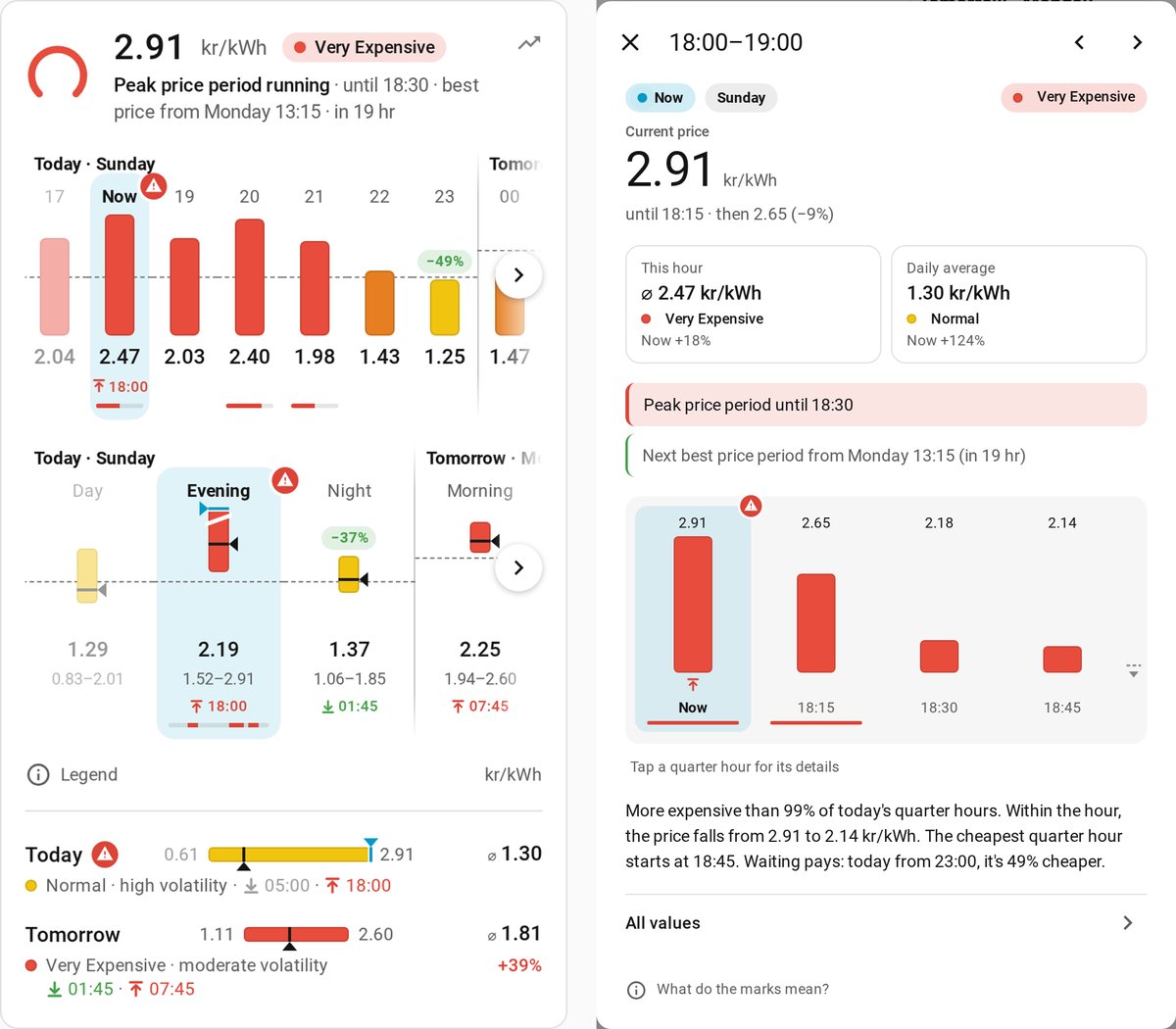
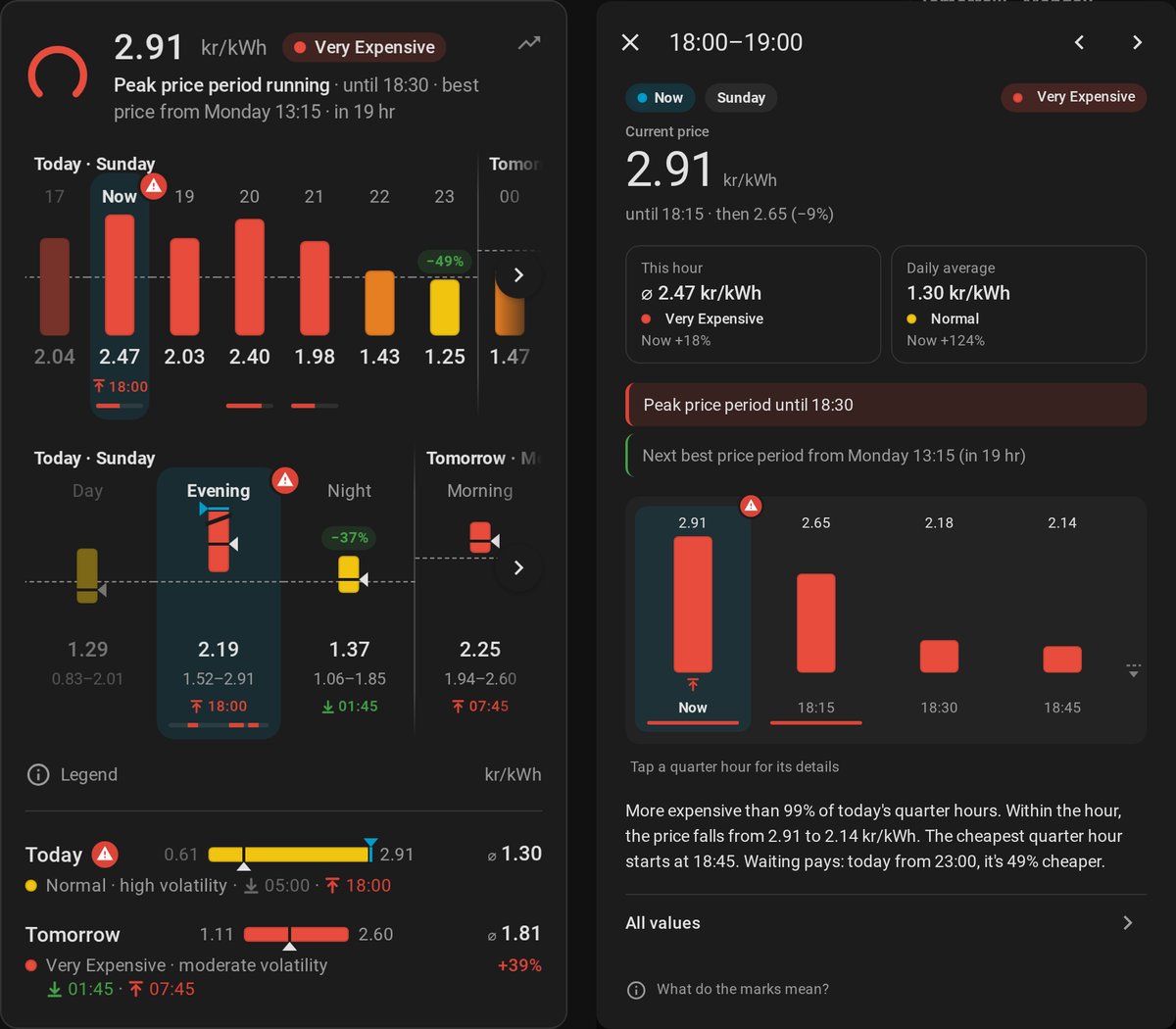
Every percentage the card shows next to prices (tiles, chips, comparisons, price steps) is computed from those prices as shown, rounded the same way, so it always agrees with them when you check.
Now gets more: the big number is the current price of the quarter hour running now, with how long it applies and what the next quarter hour costs. The hour's (or part of the day's) average and the day's average sit below in tiles of their own, so the two can't be mistaken for each other. Today leads the same way with the current price; its tiles show the day's average and the cheapest hour still to come today. Until tomorrow's prices are in, Tomorrow opens too: it says when they usually come, and shows its tiles and hours as empty placeholders. Once the prices arrive, the open window fills in by itself. A highlighted line says whether a best or peak price period is running (and until when) or when the next best price period begins, a sentence ranks the price among today's quarter hours ("more expensive than 85 % of today's quarter hours"), and the facts add what the price is made of (energy price, taxes and fees). Left open, the window follows the price as the quarter hours change. The current price has as many decimals as Current Electricity Price (current_interval_price) shows in Home Assistant (set under the entity's display precision); Decimals of the current price (now_decimals) in a section's panel sets a fixed number instead. Hovering over the Now column shows the current price too. What do the marks mean? at the bottom opens the legend, also when the card's own legend button is hidden. With the mouse, hovering over a bar, span, chip, arrow, period line or day span always shows a one-line hint with its values. To have taps run the card's action instead in a section, switch on Turn off details on tap in its panel (hide_details under hours, day_parts or days).
Where the card's actions run: with a Now section on the card, that section is where your tap, hold and double tap actions run, like the top line of the chart card: a tap there runs tap_action (instead of the details of now, as long as a tap action is set), while the hours, parts of the day and days keep opening their details and the rest of the card does nothing. Without a Now section, tapping anywhere outside the details runs tap_action, as on other cards.
The card's action as a button: instead of running on the card, switch on Card action via its own button (action_button) for a small text button, with a label of your own (action_button_text) or one that fits the action. It sits at the bottom right of the card, in the footer line when that is the last one, or at the top right (action_button_position: top; in the compact layout left of the section switch). Then only that button runs the card's actions, so tapping the card never takes you somewhere by accident. Keyboard and screen reader users reach the action either way: when the card's details are buttons themselves, a button for the card's action appears as soon as it gets keyboard focus.
tap_action, hold_action and double_tap_action work like on any Home Assistant card (more info, navigate, URL, perform action, assist, none); the visual editor offers them under Interactions. Hold and double tap run the card's actions on hours, parts of the day and days too. As on Home Assistant's own cards, a card with an action lightens or darkens slightly under the mouse.
Any width: the card adapts to the space it gets, not to the screen. Half a section is the minimum (Home Assistant won't let you set it narrower, in precise mode either); there the days stack their numbers under the span and the compact switch shows icons. On wide cards (two sections, big screens) more hours fit and the days move beside hours and parts of the day, in a column that grows with the card; then all text is a size larger, and on very wide cards the prices and labels grow once more (always Home Assistant's own font sizes). In height it follows the grid of the sections view as well: with automatic height it takes whole rows, so it ends level with the cards beside it. Just over a row boundary it tightens a little instead of taking an almost empty row: its inner spacing shrinks to at most half and its graphs to at least 44 px, half a row at most. That's also how a card action button fits in without making the card taller; otherwise it rounds up and the bars and spans take the extra space instead of leaving a gap. With a fixed height instead of automatic, the card fills the rows you set. If they're too few for what it shows, it first tightens its spacing the same way; what still doesn't fit scrolls inside the card (a fade at the bottom shows there's more), so nothing spills over its edge and no section you chose is left out.
Detailed or compact? detailed shows all sections at once: the coming hours, tonight versus tomorrow and both days at a glance, nothing to tap. compact shows one section and a small Hours | Times of day | Days switch above it, for an overview or a phone. The card remembers the section you picked last, per browser.
How to read it:
- Now is the line on top: the current price with its level, a small scale beside it (today's low to high, filled up to the price now) and one line on what to make of it: a best or peak price period running and when it ends, otherwise how long it stays cheap or when it gets cheap, when the next best price period begins, and a peak price period coming within three hours. A small icon at the top right shows the trend, the direction prices move in now (as Current Price Trend,
current_price_trend, shows it; its name on hover). On wide cards today's span sits beside it as a line, with a dot at the price now and a tick at the day's average. Tap it for the details of now. It goes where you put it inshow: first or last it spans the whole card, between hours and parts of the day it sits with them. In the compact layout it's no tab and stays in view: above the sections when it comes first, otherwise below them. Leave it out ofshowif another card already shows it, or switch off parts of it undernow: hide(gauge,verdict,trend,day_span). - Median or average: the prices the card shows (under the columns, the bars, on the right of the days, in details) and the dashed line in hours and parts of the day use the arithmetic mean; Average shown (
average) switches them to the median, or to whatever is set for the ⌀ sensors. The pointers (in the parts of the day and the day rows) always mark the median, dashed lines the average shown: within a span it shows where the prices lean, while the mean of a span sits near its middle and says little about that. - Hours are always 48: up to the end of the known prices, and before that as far back as it takes, so yesterday's hours are there until tomorrow's prices are out. The strip rests with the hour before now at its left edge and Now second; scroll or swipe back into the past or on into the future. Letting go near that resting place, the strip snaps into it, as in other apps; after ten seconds without scrolling it glides back from anywhere (not while a details window is open). Where a new day begins, a line and its name mark it (Today, Tomorrow). Like a calendar's headings, the name of the day in view stays at the left edge as you scroll, until the next day's name pushes it out, so you always see which day the hours on screen belong to (the first day of a strip has its name too). Each hour shows its price as a bar. Like temperatures in a weather forecast, the bars start a little below the lowest price rather than at zero, so even small differences show; the numbers under the bars carry the exact values (the same goes for the bars in the details and in the tile). Heights follow the prices as shown, so two hours showing the same number are equally high. When a few prices lie far above the rest (a spike tomorrow), the scale ends a little above most prices so the others keep their shape; the spike's bar or span is cut off at the top with a slanted gap, and its number shows how high it goes. Hovering an hour with the mouse (or focusing it with the keyboard) shows arrows in the direction of time, from the hour before into it and from it into the next, each with the price change in percent of the earlier price (so an arrow shows the same number whichever of its two hours you hover), computed from the prices as shown: two hours both showing 0,67 read ±0 %. The charts in an hour's and a part of the day's details do the same for their quarter hours and hours; in a day's details, hovering an hour shows its price on top of its bar right away. Tapping a quarter hour in an hour's details keeps its arrows shown while it's picked. Leaving out the price steps (
hours: hide: [steps]) turns off the arrows on hovering everywhere; a picked quarter hour still shows its own. The dashed line in hours and parts of the day is the day's average (the same kind as the prices shown): above it is pricier than the day, below it cheaper. Swipe on narrow screens; a faded edge shows there's more. - Parts of the day show their spread like low and high temperatures in a weather forecast: the colored span runs from the lowest to the highest price, a small pointer on the right marks its median, and the numbers below give the range. A short span means timing within that part barely matters; a long one means it pays to pick the right hour. On the part of the day running now, a blue pointer on the left marks where the current price lies within it: like today's row, where it's on top, the current price takes the side you read first.
- Days (today and tomorrow) work like the daily list of a weather forecast: lowest and highest price at the ends of a span on one scale for both days, a pointer under the span at the day's median, its average on the right (⌀ for the mean, or Median), and on today's row a small blue triangle above the span where the current price lies (the one Now leads with in its details; it's in the tooltip too), and below the day's price level and how much prices swing; tomorrow's row also shows how much cheaper or dearer it is than today on average: as a percentage under its average while today's row is on the tab too (in this card or another one of the same home), else in words in its info line. Showing today and tomorrow in separate cards on one tab behaves as one card: both rows share one scale, so their spans compare as if stacked. Until tomorrow's prices are published, it says when they usually arrive.
- The green chips (e.g. −60 %) mark the cheapest hour and the cheapest part of the day of each day, each in its own strip, and say how much cheaper that is than the hour or part of the day running now: −60 % means waiting saves about 60 % against now. The comparison always uses the mean, whatever average the card shows: it's what running something across that time costs, while the median leaves out how dear the expensive quarter hours are. Today's chip looks only at what's still to come today, so it stays useful once tomorrow's prices are in; tomorrow gets its own. For parts of the day, a night counts towards the day it ends on: today runs up to and including the evening, and tonight competes with tomorrow. There's no chip for a day whose cheapest time is now. Hover over a chip for the full sentence. There's deliberately no counterpart for the most expensive time: peak price periods, red bars and the line above the day's median already show those.
- Where tomorrow begins, a thin vertical line runs through both strips, with Tomorrow and the weekday in bold next to it. The dashed reference line jumps there, because from that point on it's tomorrow's median.
- A green arrow down onto a line and a red arrow up against a line, with a time (e.g. 13:15) mark when each day reaches its lowest and highest price, under the hour and the part of the day it falls in. That's the "when" to the lowest and highest price in the day rows. The day rows show the same arrows with their times, e.g. ↓ 03:15 · ↑ 17:00 (hovering shows the words); there a low or high that's already behind you turns grey (with its value at the end of the span), about half an hour after its time: it's still the day's value, but no longer one to wait for.
- The line under a column is a small timeline of it: green where a best price period lies, red for a peak price period.
- A green piggy bank or a red warning sign on top of the bar of now (and beside Today) means a best or a peak price period is running right now: a good time to run appliances, or better later. Leave it out per section with
badge(separately from the period lines,periods), for example to show it only beside Today.
Legend at the bottom left opens a window that explains every mark the card is showing right now, grouped by section, including when each part of the day begins and ends (hovering over a part's name shows it too). Like Home Assistant's own dialogs it goes full screen on phones; on wide screens it uses two columns. Its touch target is as large as phones expect (48 px), so it's easy to hit; tapping anywhere else on the card still runs your tap, hold and double tap actions. The days' marks (median pointer, now) are in it too, so a card with only the days has a legend as well. In a detail card, What do the marks mean? explains only the marks its chart shows (such as the highlighted column of now, faded past ones and empty slots not known yet).
The hours run to the end of the known prices, so tomorrow's low and high are always among them once published. The parts of the day follow the daily routine rather than the calendar: morning 06–09, day 09–17, evening 17–22, night 22–06. Tonight is one block across midnight. The strip shows four parts of the day at a time, a whole day's round: it rests with the part before the running one (faded, like the hour before now), then now and the two to come. Like the hours, it scrolls back as far as the hours reach and on to the end of the known prices, snaps back into place near its resting position and glides back after ten seconds. Where the known prices end, the last part of the day is shown as far as it's known: marked until 24:00, drawn dashed and paler, its numbers covering only that stretch, and it doesn't compete for the green chip. With the next day's prices it becomes a complete part. The card reads the outlook_hours, outlook_day_parts and outlook_days attributes of Current Electricity Price (current_interval_price); set tap_action: more-info to open that sensor's details from the card. Labels follow the language of your profile.
Now Card
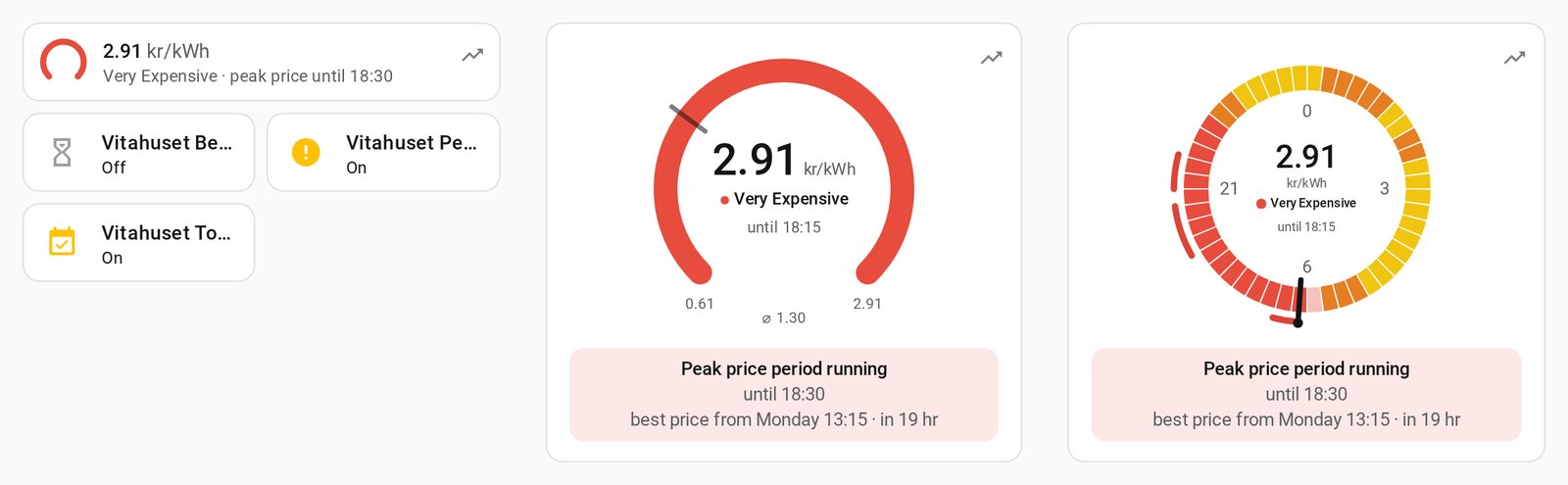
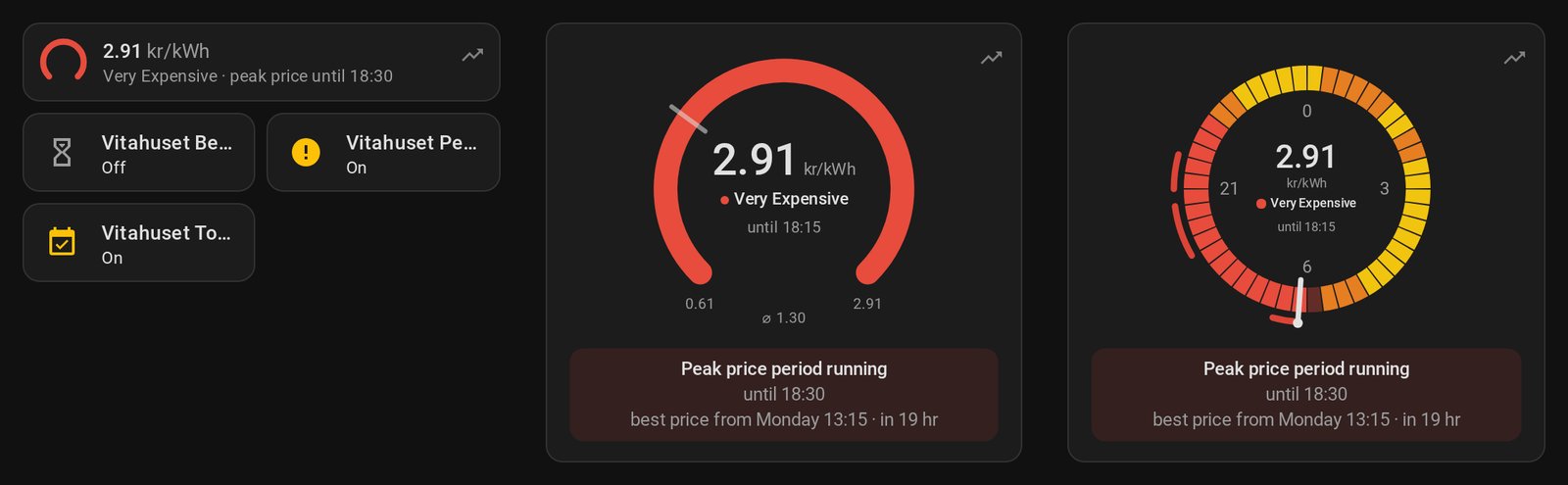
For a main dashboard, Tibber Prices Now shows only the price now and what to make of it, in one of three styles. It's the forecast card's Now on its own, with the same details on tap, and comes with the integration like the forecast card.
type: custom:tibber-prices-now-card
device_id: YOUR_HOME_DEVICE_ID
style: tile # tile (default), gauge or clock
price_unit: auto # Optional, as for the forecast card
average: mean # Optional: the day's average on the scale: auto, mean (default) or median
now_decimals: entity # Optional: decimals of the current price: entity (default) or 0–4
hide: [] # Optional: verdict (what to make of it), trend (the icon top right)
appearance: auto # Optional: auto, light or dark
tap_opens: details # Optional, what a tap opens without a tap action: details (of now, default), forecast or chart (that card in a window)
window_width: medium # Optional, for every window this card opens: narrow (like More info), medium (default), wide or full (on phones always full screen)
forecast: # Optional, with tap_opens: forecast: the forecast card's options, exactly as for the card on its own (its home is this card's)
  show: [now, hours, day_parts, days]
  layout: detailed
  title: Strompreise # The window's title
chart_button: false # Optional: true shows an icon top right (on the tile at its right end) that opens the chart card in a window
chart_icon: mdi:chart-line # Optional: that icon
chart: # Optional, with tap_opens: chart or chart_button: the chart card's options
  views: [outlook, today, tomorrow]
tap_action: # Optional, default: none (a tap opens what tap_opens says)
  action: navigate
  navigation_path: /dashboard-prices # e.g. a dashboard with the forecast card and charts
- Tile (
tile): one row like Home Assistant's tile card, the scale where a tile has its icon: the price, its level and one short phrase (e.g. Cheap · best price in 2 h). It fits between other tiles. - Gauge (
gauge): the price on today's scale. The arc runs from the day's low (left) to its high (right) and is filled up to the price now, in the level's color; a tick marks the day's average, so you see at a glance whether now is above or below it. The arc is open at the bottom, so it reads as a scale and not as a countdown, and it's always filled a little, so the level's color shows even at the day's low. Below it, the same line on what to make of it as on the forecast card. - Clock (
clock): the coming twelve hours around a dial, each quarter hour in its level's color at its time on the clock face, with the hand at now. Best price periods are green arcs outside, peak price periods red ones. The numbers say which hour each quarter of the dial stands for (e.g. 18 at the bottom): behind the hand the dial goes on with the time twelve hours later, the quarter hour right behind it faded. So "green at 2" means cheap at 14:00, without reading a number.
All three show the trend as a small icon at the top right, like the forecast card's Now; leave it out with hide: [trend], and what to make of it with hide: [verdict].
In a sections view the tile takes one row and the gauge and clock four and five, all half a section wide; the dial grows with the space you give it. A tap opens the details of now. Set Tap opens (tap_opens) to Forecast card in a window (forecast) or Chart card in a window (chart) and a tap opens that card instead; Icon for the chart card (chart_button) adds a small icon at the right that opens the chart card, so one tile gives you the forecast with a tap and the curve from its icon. How the windows work and how you set up the cards in them is described under Cards inside cards. Set a tap action (e.g. Navigate to a dashboard with more) and a tap runs that instead.
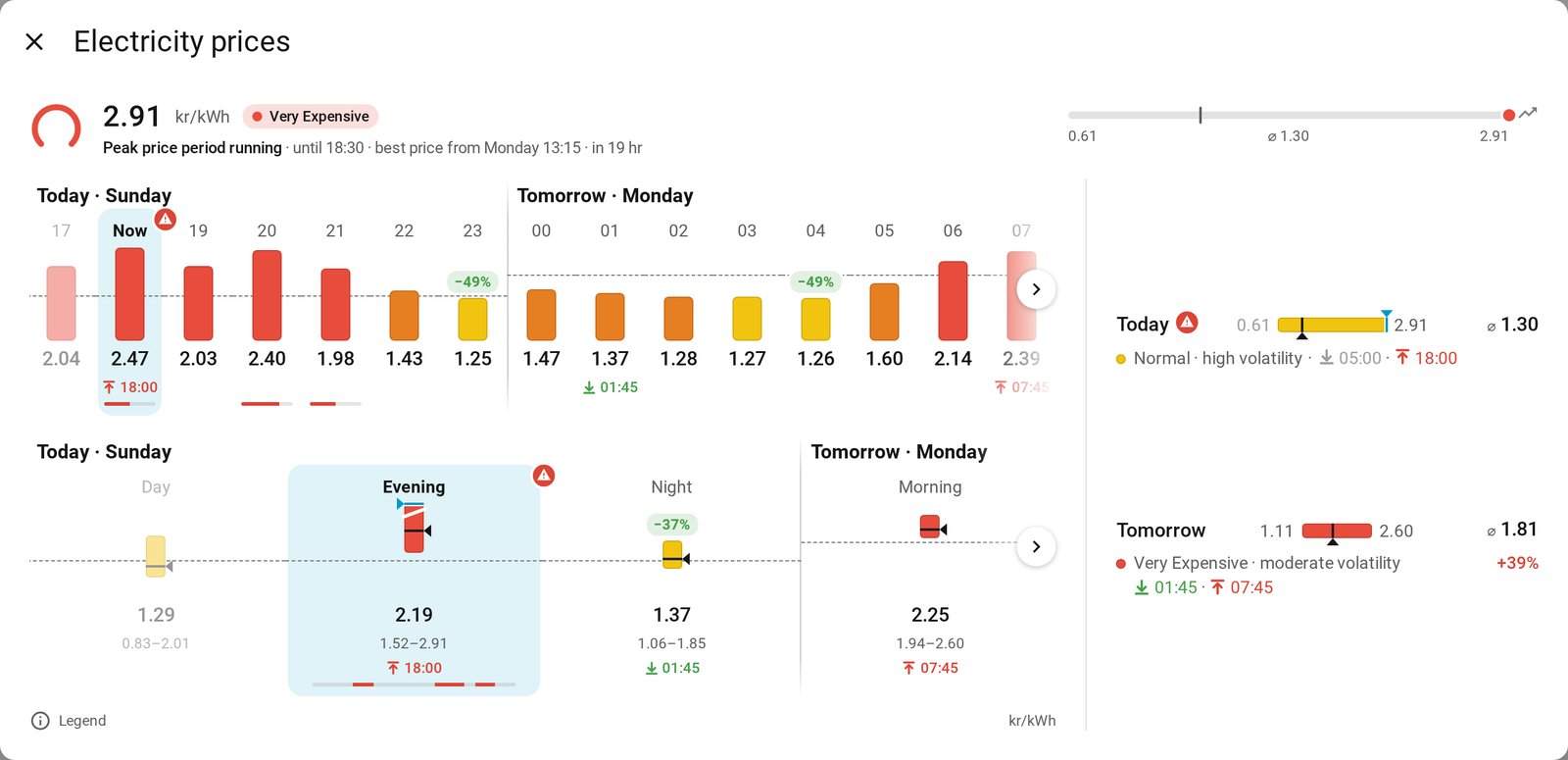
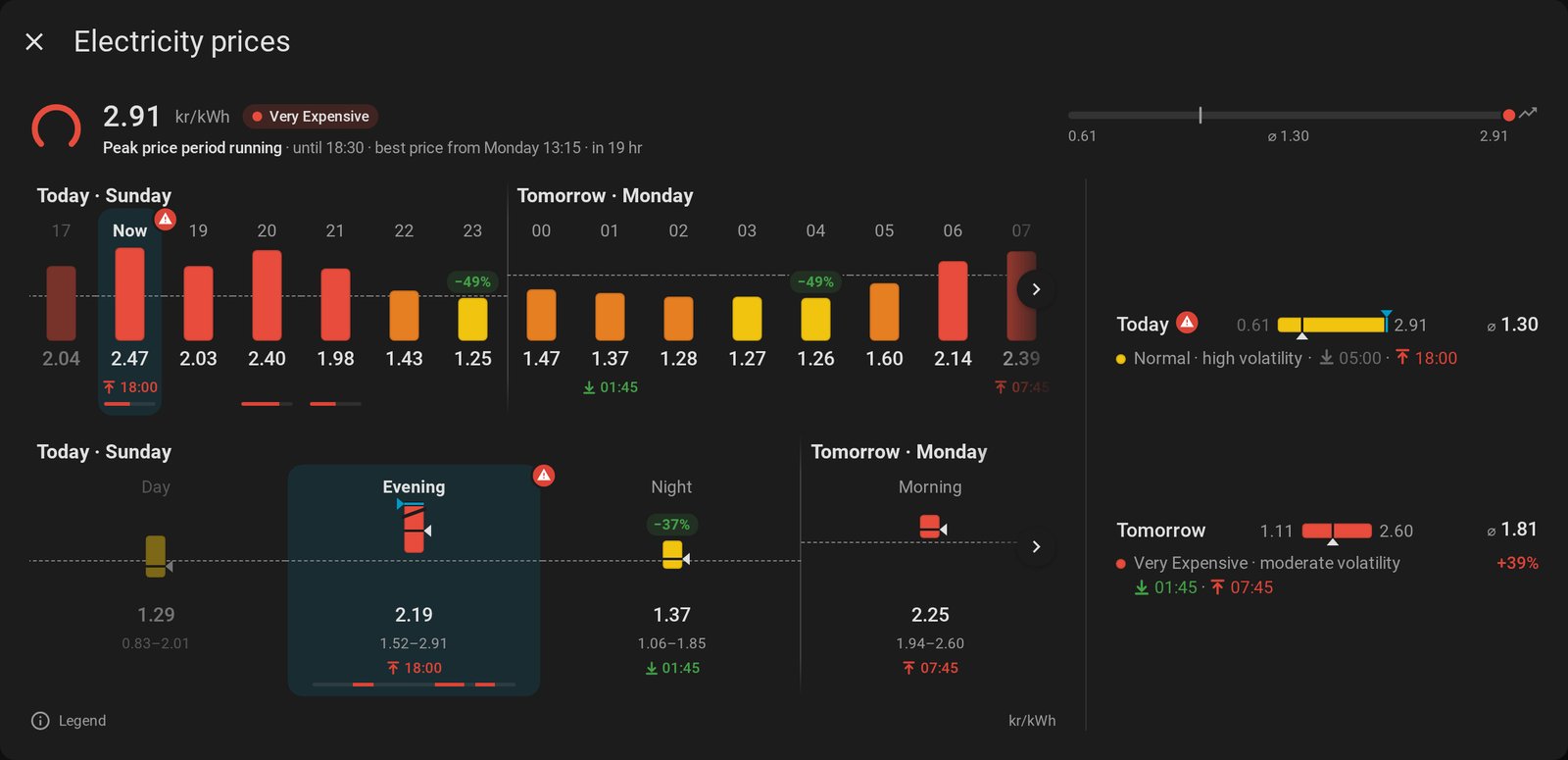
Chart Card
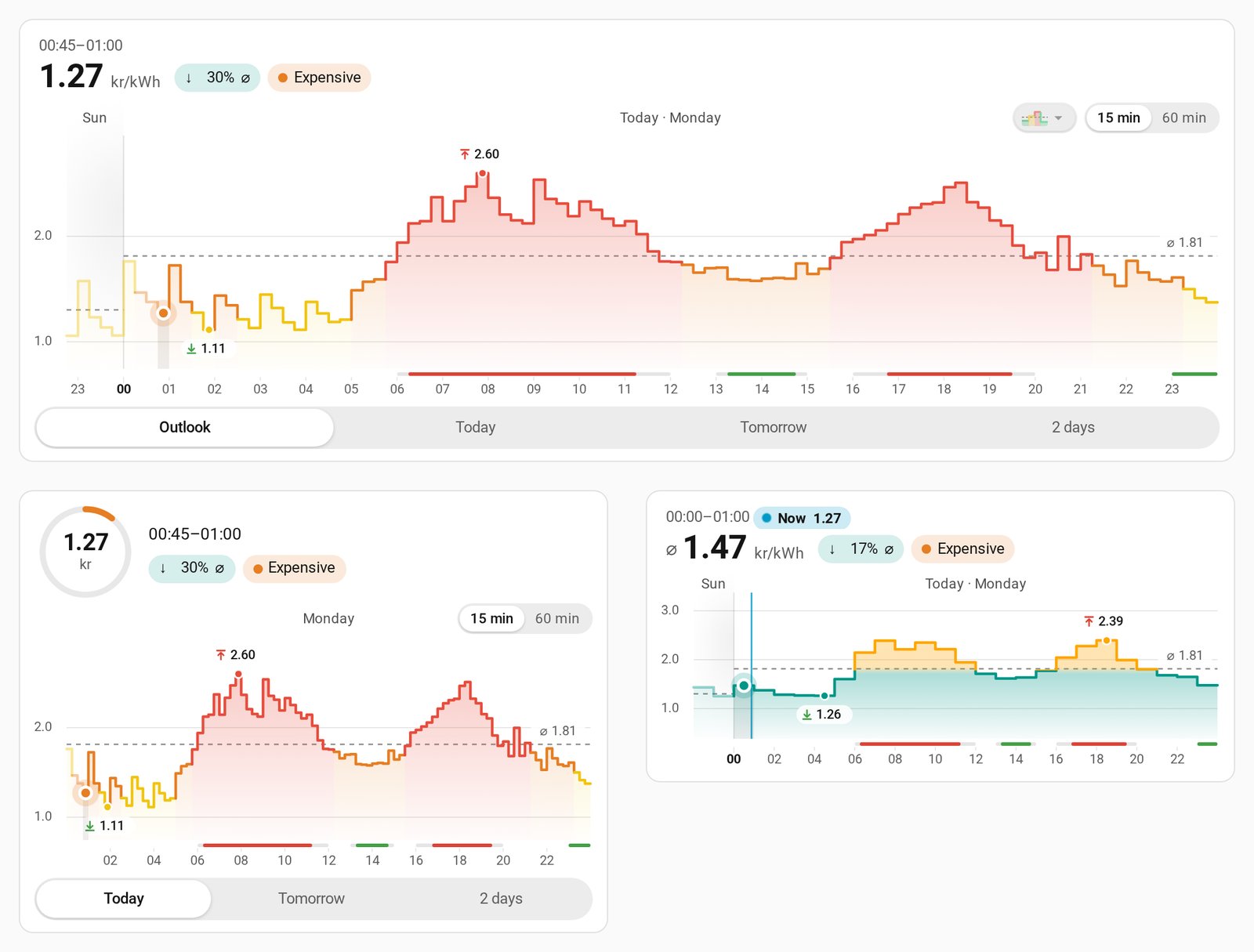
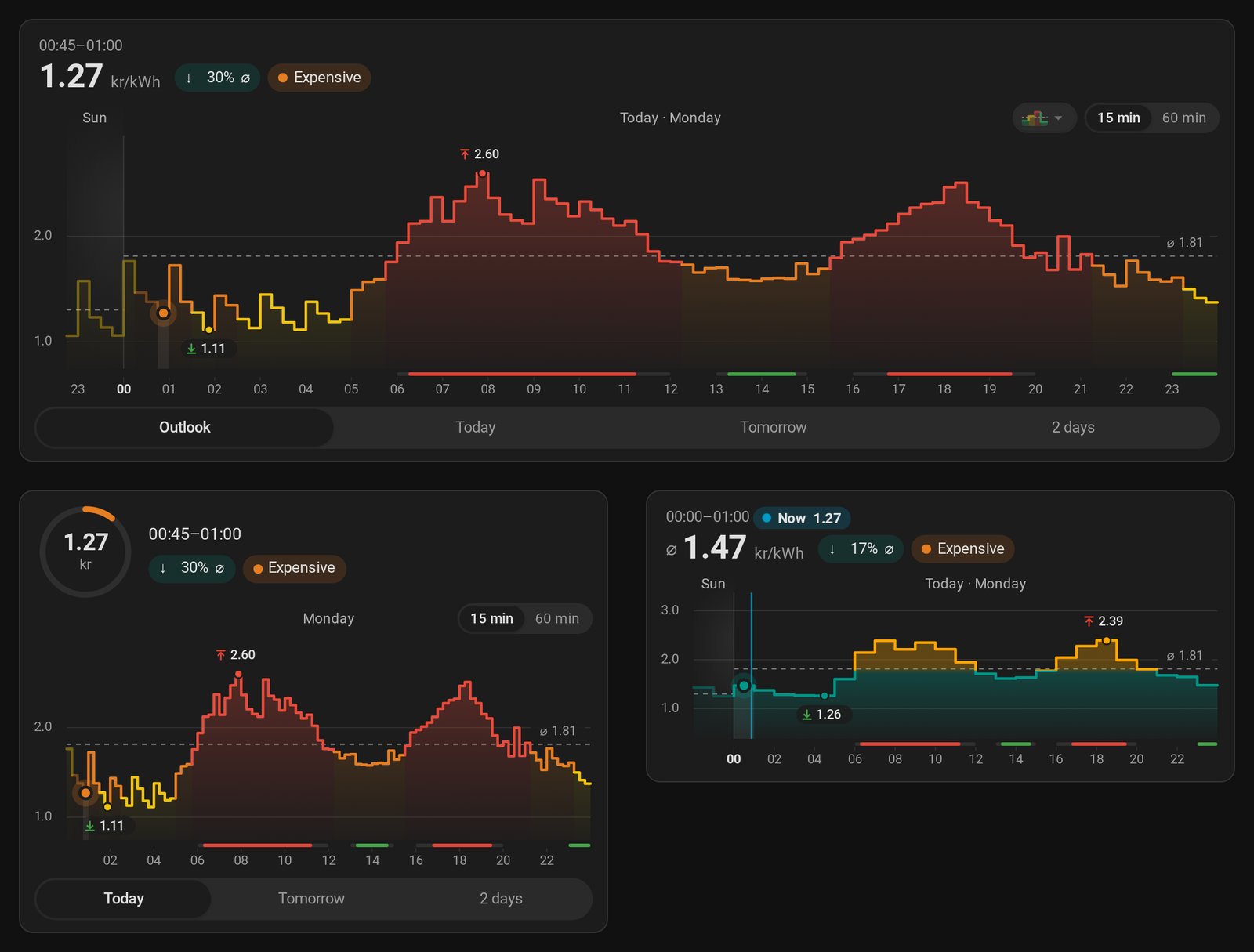
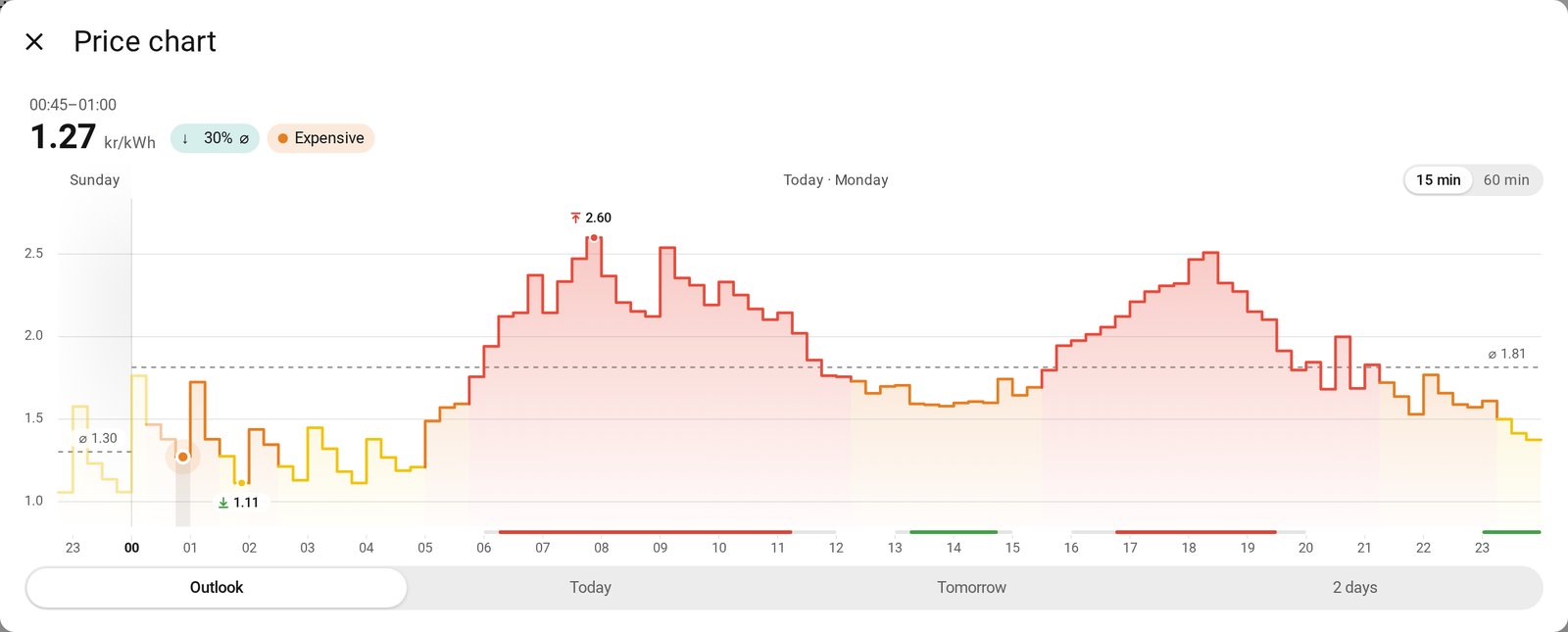
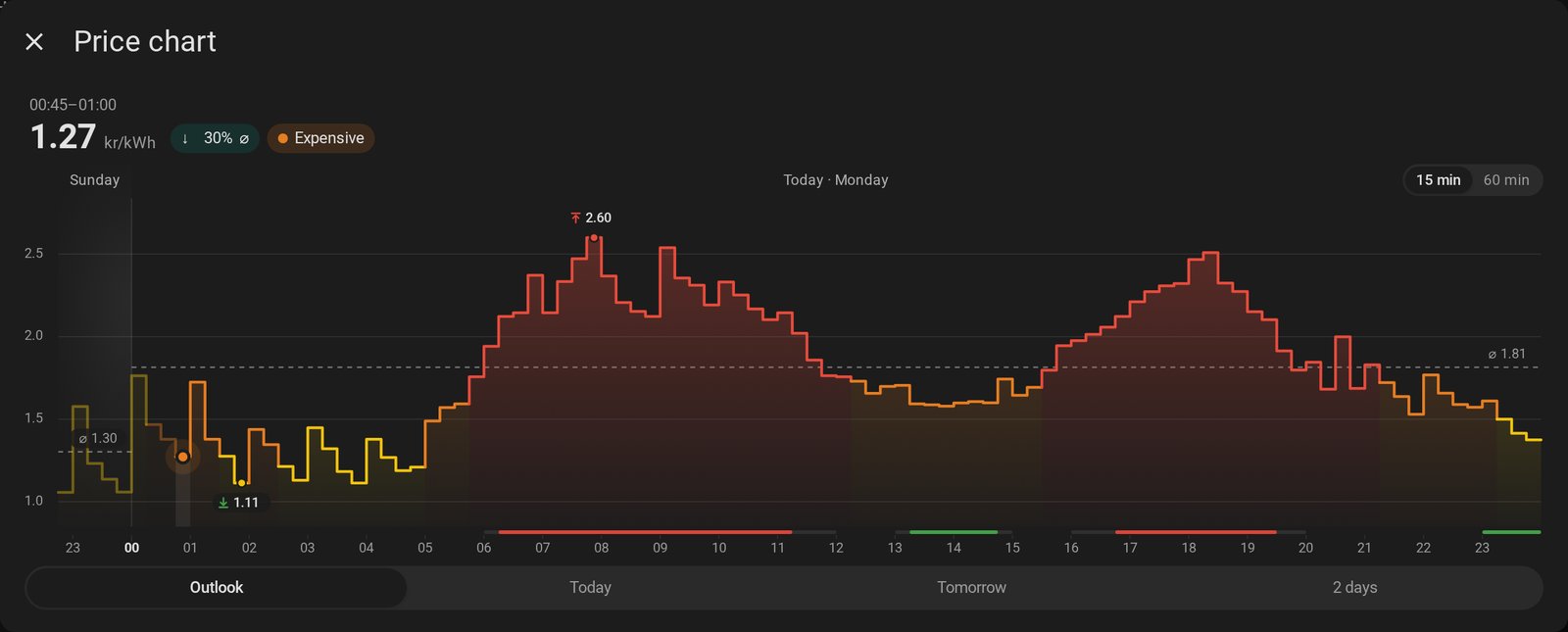
Tibber Prices Chart draws the price curve, and you read it by moving a cursor across it: the price, its time and how it relates to the average appear in the line on top, never under your finger. It reads the prices the integration already has, so it draws at once, and like the other cards it comes with the integration. It's the integration's own answer to the ApexCharts dashboard: the same zoom levels as tabs, without anything to install (ApexCharts stays available, see Charts).
type: custom:tibber-prices-chart-card
device_id: YOUR_HOME_DEVICE_ID
views: [outlook, today, tomorrow, two_days] # Optional, default: these four, in this order (also: yesterday); the first one opens first
header: chips # Optional: chips (the price with its chips in a line, default), dial (the price in a ring) or none
price_unit: auto # Optional: auto, base (€/kWh) or subunit (ct/kWh)
average: mean # Optional: what the 60-minute prices and the dashed line are: mean (default), median or auto
appearance: auto # Optional: auto, light or dark
tomorrow_pending: placeholder # Optional: until tomorrow's prices are in, the tomorrow view says when they come (placeholder), stays away (hide) or shows yesterday instead (yesterday)
all_views: # Optional: what every view does, unless its own options say otherwise
  resolution: switch # switch (15 / 60 min, starts at 15), switch_hour (starts at 60), quarter_hour or hour
  styles: # One or more ways to draw the curve; the first is the default
    - { line: level, fill: level, reference: true } # line: level, average or single; fill: level, average_shown or average_day; reference: the dashed average line
    - { line: average, fill: average_shown, reference: true, name: Simple }
  style_switch: true # Optional: a small switch in the chart changes between the styles
  hide: [] # Optional: day_word, day_weekday, day_shade, reference_label, header_average, low, high, periods, badge, now_line_quarter_hour, now_line_hour
  header_level: always # Optional: the price level in the top line: always, reading (only while the cursor is moved) or never
  header_level_at: [] # Optional: only at these levels, e.g. [very_cheap, very_expensive]
  header_delta: always # Optional: the gap from the average: always, reading or never
  header_delta_from: 0 # Optional: only from a gap of this many percent
today: # Optional: a view's own options, the same keys as all_views
  resolution: quarter_hour
units: { header: full, tag: full, axis: none } # Optional, per place: full (ct/kWh), currency (ct) or none
axis_decimals: auto # Optional: decimals of the price axis: auto (one in €/kr, none in ct/øre) or 0–3
axis_title_x: false # Optional: "Time" under the hours
axis_title_y: false # Optional: "Price" up the price axis
grid_line_width: 0.75 # Optional: the price lines, in px (0: none)
grid_line_strength: 12 # Optional: their strength in percent of the text color (empty: the theme's divider color)
day_line_width: 1 # Optional: the line where a day begins, in px (0: none)
day_line_strength: 20 # Optional: its strength (empty: as the price lines)
day_shade_strength: 6 # Optional: the soft shade off that line, towards the other day (0: none)
day_shade_width: 2.5 # Optional: how far it reaches, in hours
line_colors: { cheap_light: "#2e7d32", cheap_dark: "#66bb6a" } # Optional: own colors, per state and mode (now, single, below, above and the five levels)
fill_colors: {} # Optional: the same for the area (unset: the line's)
day_colors: {} # Optional: the pills of yesterday, today and tomorrow
tap_opens: nothing # Optional: nothing (default) or forecast (the forecast card in a window)
window_width: medium # Optional: narrow, medium, wide or full
forecast: # Optional, with tap_opens: forecast: the forecast card's options
  show: [now, hours, day_parts, days]
tap_action: # Optional, on the card's top line (the curve is the cursor's)
  action: more-info
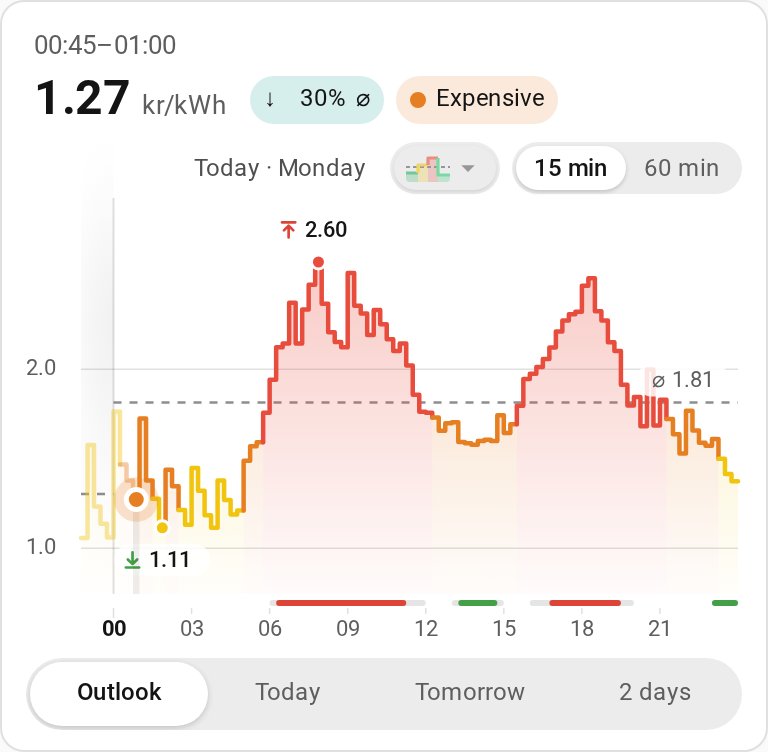
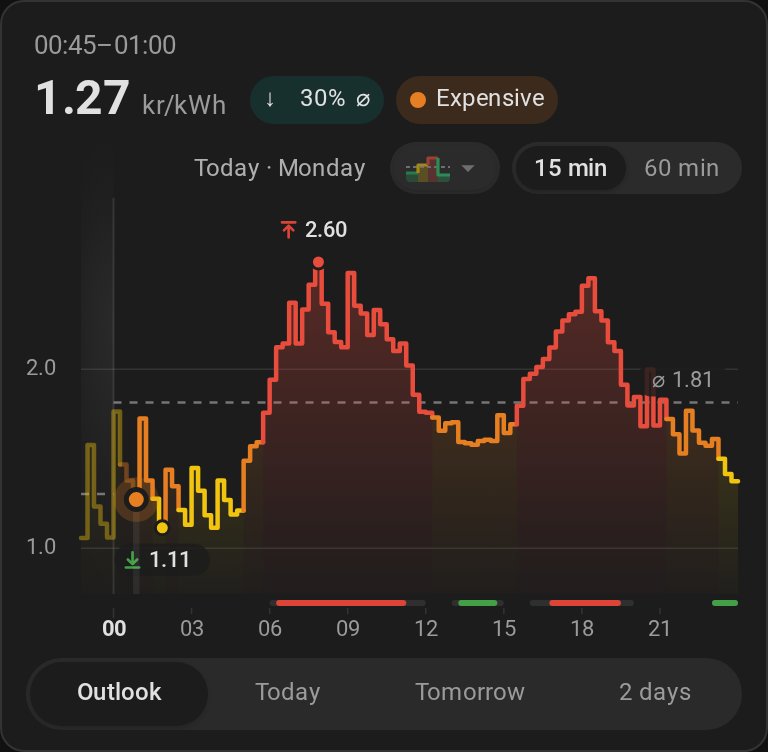
Reading the curve: with a mouse the cursor follows the pointer. On a phone, hold your finger on the curve for a moment (it ticks), then drag sideways: the cursor follows it, slot by slot, and stays where you let go, so you can read in peace. It goes back to now by itself after 30 seconds. A tap sets it at once; a vertical swipe scrolls the page as usual. With the keyboard, the arrow keys move it. The cursor's tag above the curve shows the time and price, with a badge on its corner in a best or peak price period (a ring when the period covers only part of an hour). At rest the cursor sits on the price now; in 15-minute views its halo breathes gently, a quiet sign that the card shows the live price (while you read prices, a line marks now instead).
The top line shows the time, then the day as a pill (Now in its own color, with the quarter hour's price in 60-minute views; in a view of one day its tab names the day, so there's no pill), and below it the price with chips for how far it lies from the average, the average itself (where the chart has no dashed line), the price level and a best or peak price period. Everything has a fixed place, so the line stays calm while you move the cursor; changes ease over in a fraction of a second. Top line (header) can show the price in a ring instead (dial), filled as far as the price lies between the view's low and high, in the area's color, or nothing at all (none). Under Level and gap in the top line you decide per view whether the level and the gap show always, only while you read prices, or never, and only at certain levels or from a certain gap on.
Views and resolution: each view is a tab under the curve. Outlook starts two hours before now and runs to the end of the known prices, Today, Tomorrow and Yesterday show one day, 2 days today and tomorrow. Each shows 15-minute prices or hourly averages, or offers a 15 min | 60 min switch in the chart (resolution). The resolution you pick holds for all views until you reload the page, and both share one scale, so switching never makes the curve jump.
Until tomorrow's prices are in (tomorrow_pending, right under the views in the editor): the Tomorrow tab says when they usually come, stays away, or makes way for Yesterday until then. You don't need to list Yesterday in the views for that: it shows up before Today (in order of time) and goes again once tomorrow's prices arrive.
Styles: a style is a line color (level: the price level's colors; average: like the area; single: one color) and an area (level, or below and above an average: of all prices shown, average_shown, as in Tibber's app, or of each day, average_day), with or without the dashed average line. List several under styles and switch on Switchable in the card (style_switch): two styles get small buttons in the chart, more a menu. The editor shows a preview of each.
Every view its own: All views sets what every view does; each view's panel can override it (empty fields follow All views). The editor shows the values in effect and saves only what you change.
Lines, axes and colors: the price lines and the day line are thin and grey by default; their thickness and strength are a share of the text color, so one value suits light and dark themes. Midnight on the time axis is bold, and a soft shade off the day line falls towards the other day. The axes can carry titles and the unit; the price axis has as many decimals as fit the unit unless you set them. Line colors, Area colors and Day colors take colors of your own per state, for light and dark separately; empty means the theme's.
Tap and windows: the card's actions run on its top line (the curve is the cursor's). Tap opens (tap_opens: forecast) opens the forecast card in a window; see Cards inside cards.
Cards inside cards
The cards can open each other in a window, which is handy on a main dashboard with little room:
| Card | Opens in a window |
|---|---|
| Now | the forecast card or the chart card on a tap (tap_opens), and the chart card from its icon (chart_button) |
| Forecast | the chart card from its icon (chart_button) |
| Chart | the forecast card on a tap on its top line (tap_opens: forecast) |
The card in the window is set up exactly like the card on its own, under its key in the outer card (forecast: or chart:); the home is the outer card's and the window shows the title. Window width (window_width) sets how wide the window is on a computer: narrow like Home Assistant's More info, medium (default), wide or the full screen width; on a phone it's full screen. It works like the card on its own (its details, legend, cursor and switches), Escape or the close button lead back. A card in a window stands on its own: it doesn't share the day scale or legend with the cards on the dashboard, and it opens no further windows.
In the visual editor, each card held this way gets a row at the end of the editor, such as Chart card in a window ›. It opens that card's own editor one level down, with an arrow back to the outer card, as Home Assistant's own stack cards do; what you change there is saved under the outer card's chart: or forecast:.
Price Outlook Tile Feature
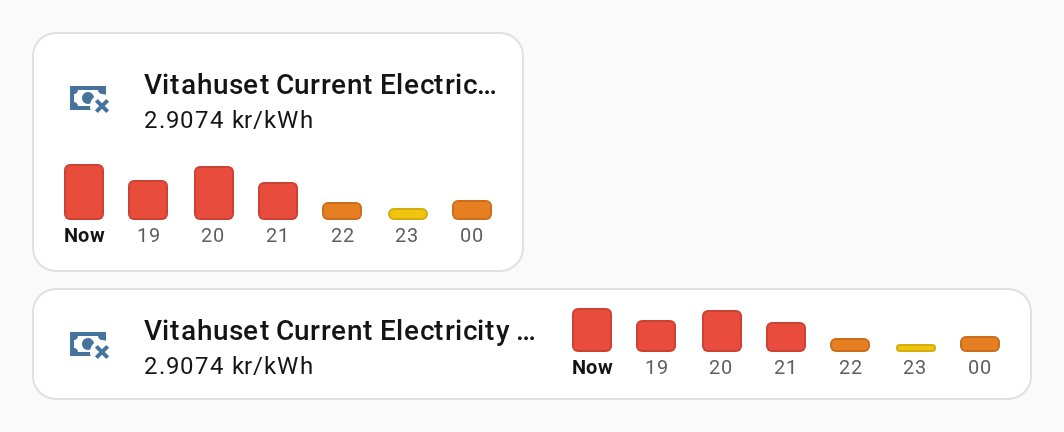
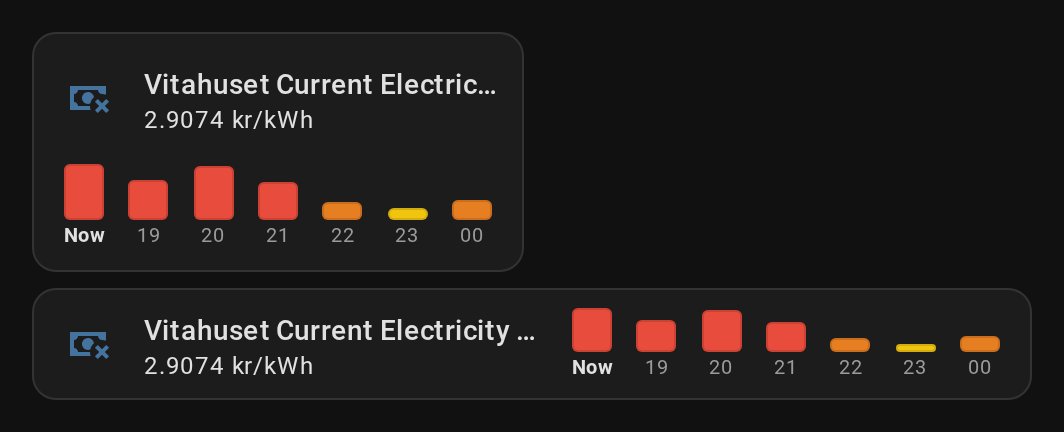
Prefer the tile you already have? The integration also brings a tile card feature: Price outlook adds the coming hours to a tile of Current Electricity Price (current_interval_price), as small bars in the level colors (their average, like the forecast card's default) from now to six hours ahead. In the tile editor, open Features → Add feature and pick Price outlook; it's only offered for that sensor.
type: tile
entity: sensor.<home_name>_current_electricity_price
features_position: bottom # or inline: next to the name on wide tiles
features:
  - type: custom:tibber-prices-outlook-feature
Below the tile the bars carry their hour; inline, where it's too narrow for labels, an outline marks the hour now. Home Assistant's own Trend graph feature fits the same tile well: it shows where the price came from, ours where it's going.
💬 Comments are page-specific. For a new question or idea, open a dedicated Discussion on GitHub so it gets its own thread and proper visibility.