Dashboard Examples
Beautiful dashboard layouts using Tibber Prices sensors.
<home_name> is a placeholder for your Tibber home display name in Home Assistant. Entity IDs are derived from the displayed name (localized), so the exact slug may differ. Can't find a sensor? Use the Entity Reference (All Languages) to search by name in your language.
Complete Dashboard as a Starting Point
The tibber_prices.get_dashboard_yaml action builds a dashboard view for your home: should I use electricity now and when is the next cheap window (the Now Card as a gauge, readable without a tap), and what do the coming hours look like, as a price chart and as the course of the day shaped like a weather forecast (the Forecast Card). Tap an hour, a part of the day or a day in that card for its details, including best and peak price periods. The price curve is the Chart Card, with a switch between the price levels and the simple style of Tibber's app. A second, small view, Compact, is made for your main dashboard: the price now as a tile that opens the whole forecast on a tap and the chart from its icon (see Cards inside cards), with the best and peak price periods as tiles below. You paste the views into one of your own dashboards and change whatever you like from there.
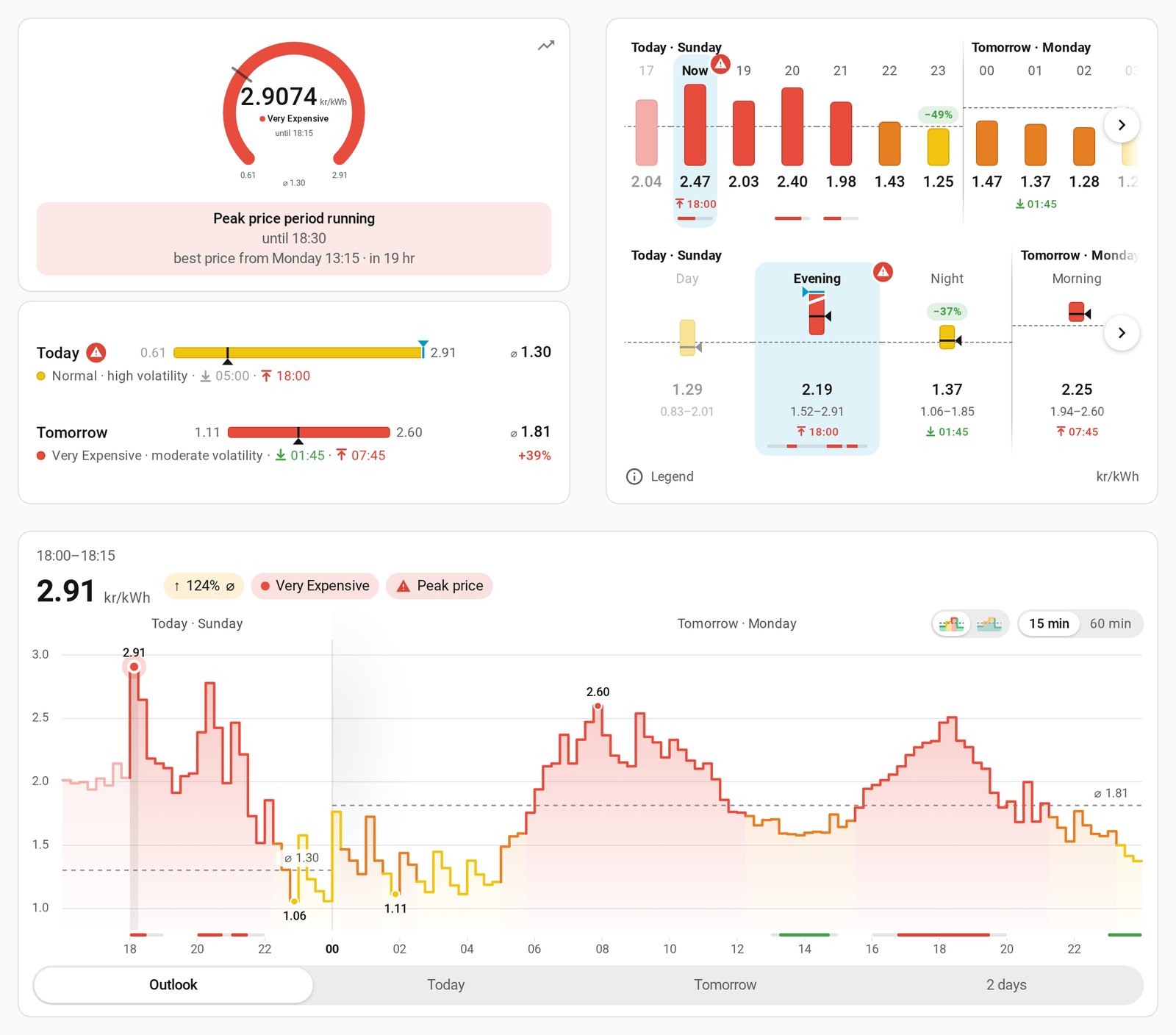
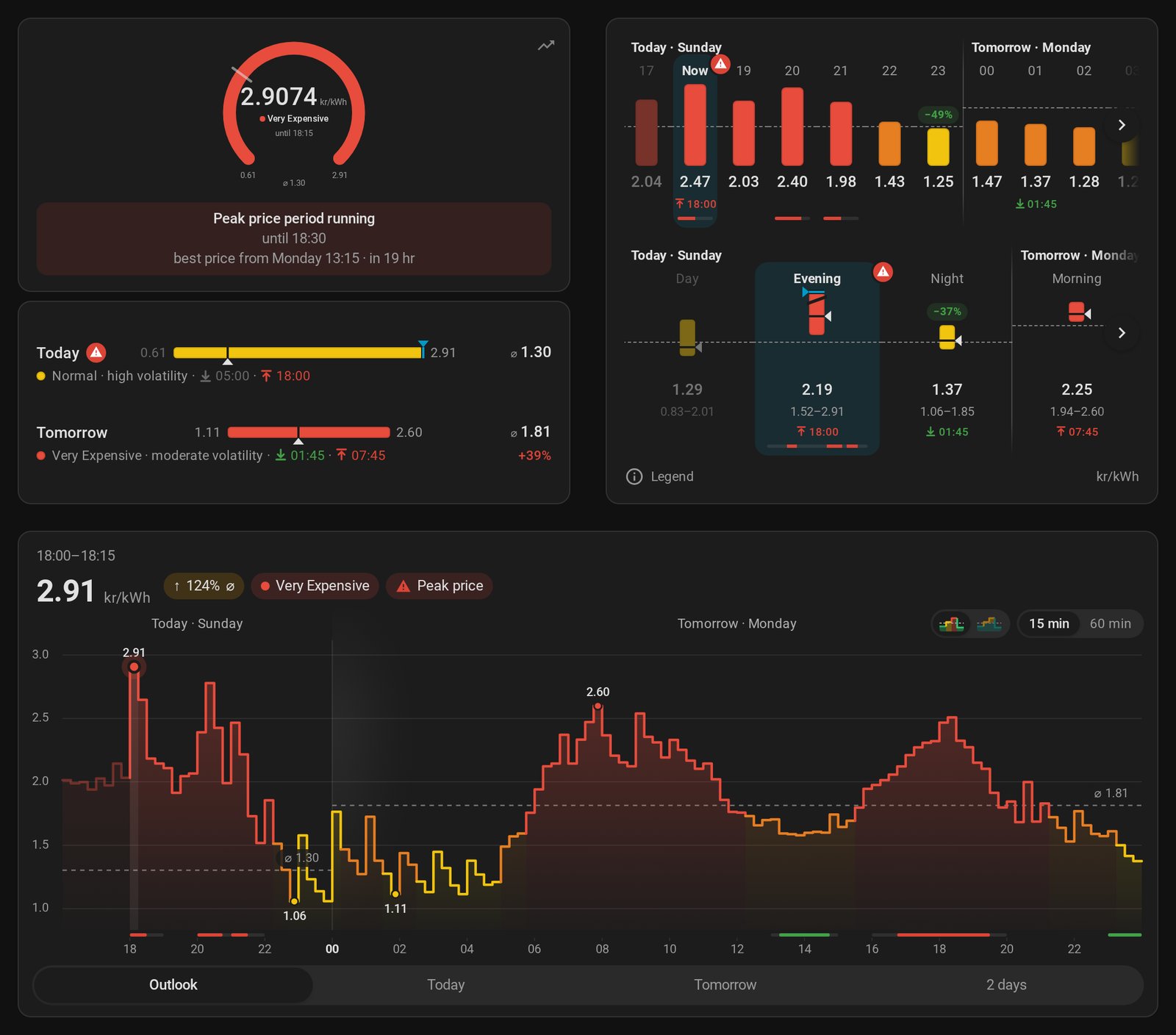
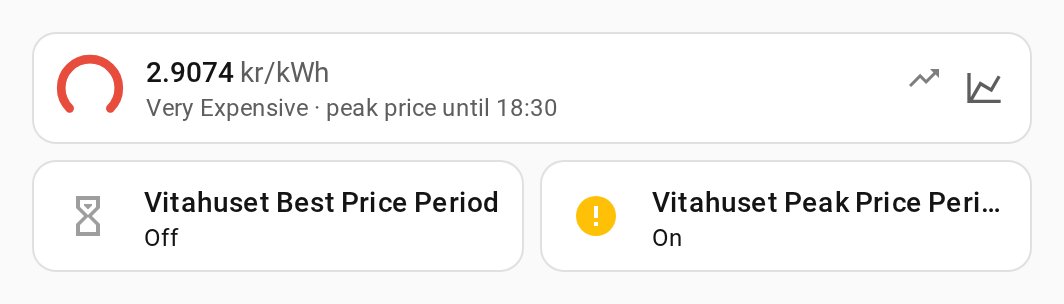
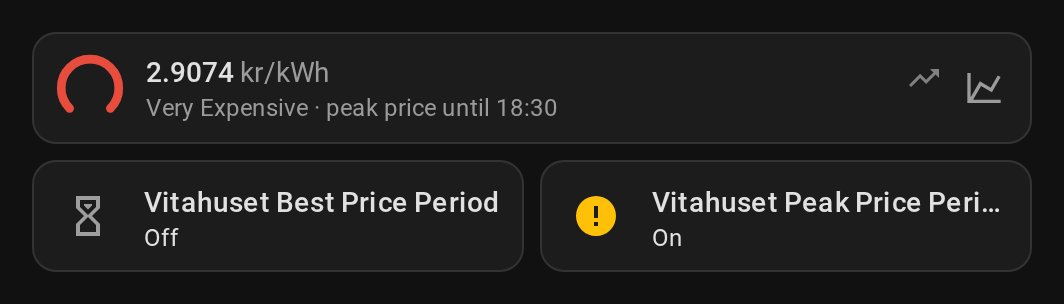
Add it to your dashboard:
- Go to Developer Tools → Actions, pick Get dashboard YAML, select your home and click Perform action.
- Open the dashboard you want the view in, click ✏️ Edit, then ⋮ → Raw configuration editor.
- Paste the views from the response under
views:, after your existing views, and save. To put the compact cards on your main dashboard instead, copy them from the Compact view.
Show YAML: Action call
action: tibber_prices.get_dashboard_yaml
data:
  entry_id: YOUR_CONFIG_ENTRY_ID
  charts: # Optional, default: all four
    - outlook
    - today
    - tomorrow
    - two_days
  chart_resolutions: # Optional, default: both, with a 15 min / 60 min switch in each chart
    - interval
    - hourly
  chart_card: tibber_prices # Optional, default; or apexcharts
  language: de # Optional, default: system language
Good to know:
- Pick your charts:
chartschooses the chart views,chart_resolutionswhether you get 15-minute intervals, hourly averages or a switch between both. With a single chart there are no tabs at all. - Chart card or ApexCharts: by default the integration's own chart card draws the price curve (nothing to install; drag across it to read each price). With
chart_card: apexchartsyou get ApexCharts charts in tabs instead, and the compact view's tile opens only the forecast card. - It's your copy. The action writes to no dashboard, and updates of the integration don't change what you pasted. Call the action again to see what's new.
- Labels are in your Home Assistant system language unless you pick another one with
language(de, en, nb, nl, sv), for example when your profile uses a different language than the system. Entity IDs are the ones of the home you picked. With several homes, call it once per home and rename the view paths (tibber-prices,tibber-prices-compact), which must be unique within a dashboard. - Custom cards (only with
chart_card: apexcharts): the views use ApexCharts Card, Config Template Card and TabDeck Card from HACS. Without them you still get a valid view: a hint replaces each chart that can't work, and each tab group shows only its first tab. A notification lists what's missing, with links to HACS (the response also has it undermissing_cards). - Disabled sensors leave out the cards that show them; the notification and the response (
missing_entities) name them. Enable them and call the action again if you want those cards; once nothing is missing, the notification disappears. - Removed sensors (deleted from the entity list) also leave out their cards; they're named under
removed_entitiesand come back when you reload the integration. Optional sensors leave out nothing: without Chart Metadata the charts still come, they only scale better with it (optional_entities).
Tibber Prices Cards
The integration brings its own cards: the Forecast Card (hours, parts of the day and days like a weather forecast), the Now Card (the price now as a tile, gauge or clock), the Chart Card (the price curve, read with a cursor) and the Price outlook tile feature. They open each other in windows, too. They're described on a page of their own: Dashboard Cards.
Basic Price Display Card
Simple card showing current price with dynamic color:
Show YAML: Current Price Card
type: entities
title: Current Electricity Price
entities:
  - entity: sensor.<home_name>_current_electricity_price
    name: Current Price
    icon: mdi:flash
  - entity: sensor.<home_name>_current_price_rating
    name: Price Rating
  - entity: sensor.<home_name>_next_electricity_price
    name: Next Price
Period Status Cards
Show when best/peak price periods are active:
Show YAML: Best and Peak Period Card
type: horizontal-stack
cards:
  - type: entity
    entity: binary_sensor.<home_name>_best_price_period
    name: Best Price Active
    icon: mdi:currency-eur-off
  - type: entity
    entity: binary_sensor.<home_name>_peak_price_period
    name: Peak Price Active
    icon: mdi:alert
Custom Button Card Examples
Price Level Card
Show YAML: Price Level Card
type: custom:button-card
entity: sensor.<home_name>_current_price_level
name: Price Level
show_state: true
styles:
  card:
    - background: |
        [[[
          if (entity.state === 'LOWEST') return 'linear-gradient(135deg, #00ffa3 0%, #00d4ff 100%)';
          if (entity.state === 'LOW') return 'linear-gradient(135deg, #4dddff 0%, #00ffa3 100%)';
          if (entity.state === 'NORMAL') return 'linear-gradient(135deg, #ffd700 0%, #ffb800 100%)';
          if (entity.state === 'HIGH') return 'linear-gradient(135deg, #ff8c00 0%, #ff6b00 100%)';
          if (entity.state === 'HIGHEST') return 'linear-gradient(135deg, #ff4500 0%, #dc143c 100%)';
          return 'var(--card-background-color)';
        ]]]
Lovelace Layouts
Compact Mobile View
Optimized for mobile devices:
Show YAML: Optimized for mobile devices
type: vertical-stack
cards:
  - type: custom:mini-graph-card
    entities:
      - entity: sensor.<home_name>_current_electricity_price
    name: Today's Prices
    hours_to_show: 24
    points_per_hour: 4

  - type: glance
    entities:
      - entity: sensor.<home_name>_best_price_start
        name: Best Period Starts
      - entity: binary_sensor.<home_name>_best_price_period
        name: Active Now
Desktop Dashboard
Full-width layout for desktop:
Show YAML: Full-width layout for desktop
type: grid
columns: 3
square: false
cards:
  - type: custom:apexcharts-card
    # See chart-examples.md for ApexCharts config

  - type: vertical-stack
    cards:
      - type: entities
        title: Current Status
        entities:
          - sensor.<home_name>_current_electricity_price
          - sensor.<home_name>_current_price_rating

  - type: vertical-stack
    cards:
      - type: entities
        title: Statistics
        entities:
          - sensor.<home_name>_price_today
          - sensor.<home_name>_today_s_lowest_price
          - sensor.<home_name>_today_s_highest_price
Icon Color Integration
Using the icon_color attribute for dynamic colors:
Show YAML: Icon Color Integration
type: custom:mushroom-chips-card
chips:
  - type: entity
    entity: sensor.<home_name>_current_electricity_price
    icon_color: "{{ state_attr('sensor.<home_name>_current_electricity_price', 'icon_color') }}"

  - type: entity
    entity: binary_sensor.<home_name>_best_price_period
    icon_color: green

  - type: entity
    entity: binary_sensor.<home_name>_peak_price_period
    icon_color: red
See Icon Colors for detailed color mapping.
Picture Elements Dashboard
Advanced interactive dashboard:
Show YAML: Advanced interactive dashboard
type: picture-elements
image: /local/electricity_dashboard_bg.png
elements:
  - type: state-label
    entity: sensor.<home_name>_current_electricity_price
    style:
      top: 20%
      left: 50%
      font-size: 32px
      font-weight: bold

  - type: state-badge
    entity: binary_sensor.<home_name>_best_price_period
    style:
      top: 40%
      left: 30%

  # Add more elements...
Auto-Entities Dynamic Lists
Automatically list all price sensors:
Show YAML: Auto-Entities Sensor List
type: custom:auto-entities
card:
  type: entities
  title: All Price Sensors
filter:
  include:
    - entity_id: "sensor.<home_name>_*_price"
  exclude:
    - state: unavailable
sort:
  method: state
  numeric: true
💡 Related:
- Chart Examples - ApexCharts configurations
- Dynamic Icons - Icon behavior
- Icon Colors - Color attributes
💬 Comments are page-specific. For a new question or idea, open a dedicated Discussion on GitHub so it gets its own thread and proper visibility.