Chart Examples
This guide showcases the different chart configurations available through the tibber_prices.get_apexcharts_yaml action.
Quick Start: Call the action with your desired parameters, copy the generated YAML, and paste it into your Lovelace dashboard!
Using another card or integration? See Third-Party Cards & Integrations.
<home_name> is a placeholder for your Tibber home display name in Home Assistant. Entity IDs are derived from the displayed name (localized), so the exact slug may differ. Can't find a sensor? Use the Entity Reference (All Languages) to search by name in your language.
entry_id)Every example below contains entry_id: YOUR_CONFIG_ENTRY_ID. This value identifies which Tibber home (integration instance) the action targets.
In the Action UI (Developer Tools → Actions or the automation editor): The entry_id field is a dropdown — just select your Tibber home and HA fills in the correct ID automatically.
In YAML: Go to Settings → Devices & Services, find the Tibber Prices card, open the ⋮ (three-dot) menu, and choose "Copy Config Entry ID". Paste the copied value in place of YOUR_CONFIG_ENTRY_ID.
Overview
The integration generates four chart modes. Think of them as zoom levels: instead of zooming in by hand, pick the view that fits the question you have.
| Mode | day value | Shows | Best for | Dependencies |
|---|---|---|---|---|
| Outlook | rolling_window_autozoom | 2 hours back + everything ahead | Default view: what's coming? | ApexCharts + Config Template Card |
| Today | today | Today, 00:00–23:59 | Reviewing the whole day | ApexCharts Card |
| Tomorrow | tomorrow | Tomorrow, 00:00–23:59 | Planning tomorrow (once prices are published) | ApexCharts Card |
| 2 days | rolling_window (or omit day) | 48 hours | The big picture | ApexCharts + Config Template Card |
Add resolution: hourly to any mode for one value per clock hour (:00–:59) instead of 15-minute intervals.
All examples use level_type: level, so the chart colors match the price level sensors (VERY_CHEAP … VERY_EXPENSIVE). The action's default is rating_level; see Level type options below.
All Chart Modes
1. Outlook (auto-zoom)
When to use: As your default chart. It hides the past and stays focused on what's coming.
Dependencies: ApexCharts Card + Config Template Card
Generate:
Show YAML: Outlook (auto-zoom)
service: tibber_prices.get_apexcharts_yaml
data:
    entry_id: YOUR_CONFIG_ENTRY_ID
    day: rolling_window_autozoom
    level_type: level
    highlight_best_price: true
    highlight_peak_price: true
Screenshot:
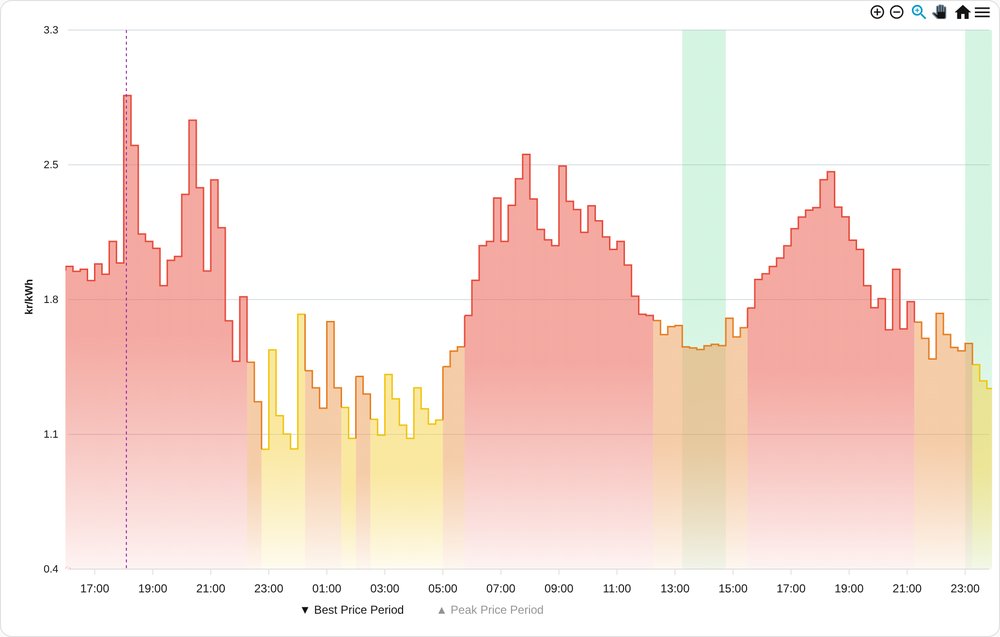
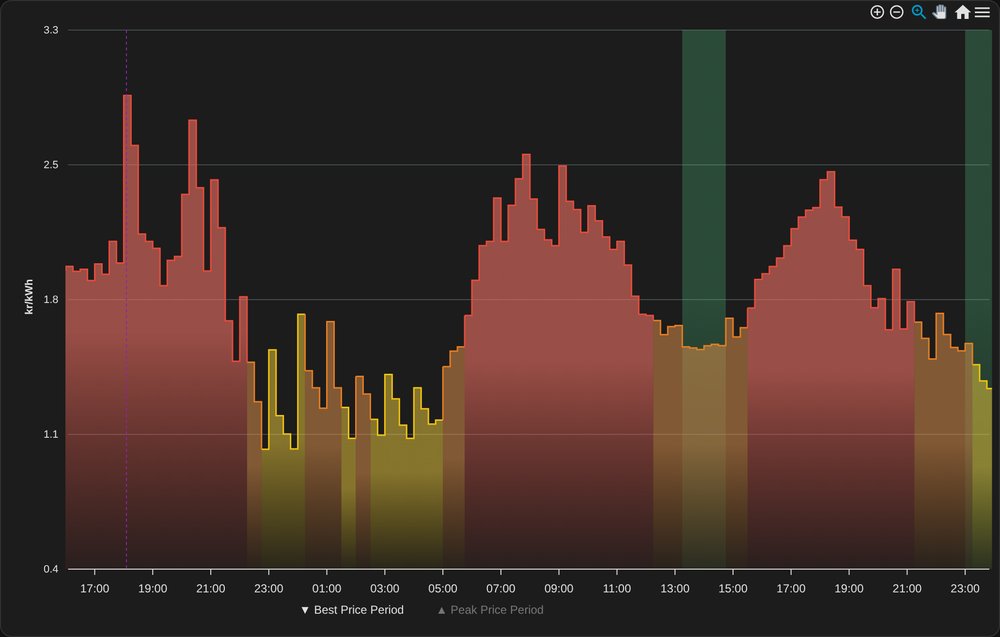
Key features:
- ✅ Progressive zoom: the window shrinks every 15 minutes, so the coming hours always fill the chart
- ✅ 2 hours lookback for context, then everything ahead
- ✅ Includes tomorrow automatically once its prices are published
- ✅ Dynamic Y-axis scaling via the
chart_metadatasensor - ✅ Peak price periods available via the legend (hidden until you click ▲ Peak Price Period)
How it works (before tomorrow's prices arrive):
- 06:00: shows 04:00 → midnight (20 h)
- 12:00: shows 10:00 → midnight (14 h)
- 18:00: shows 16:00 → midnight (8 h)
- Once tomorrow's prices are available, the window extends through tomorrow.
2. Today
When to use: Looking at the whole day at once, including the hours already behind you.
Dependencies: ApexCharts Card only
Generate:
Show YAML: Today
service: tibber_prices.get_apexcharts_yaml
data:
    entry_id: YOUR_CONFIG_ENTRY_ID
    day: today
    level_type: level
    highlight_best_price: true
    highlight_peak_price: true
Screenshot:
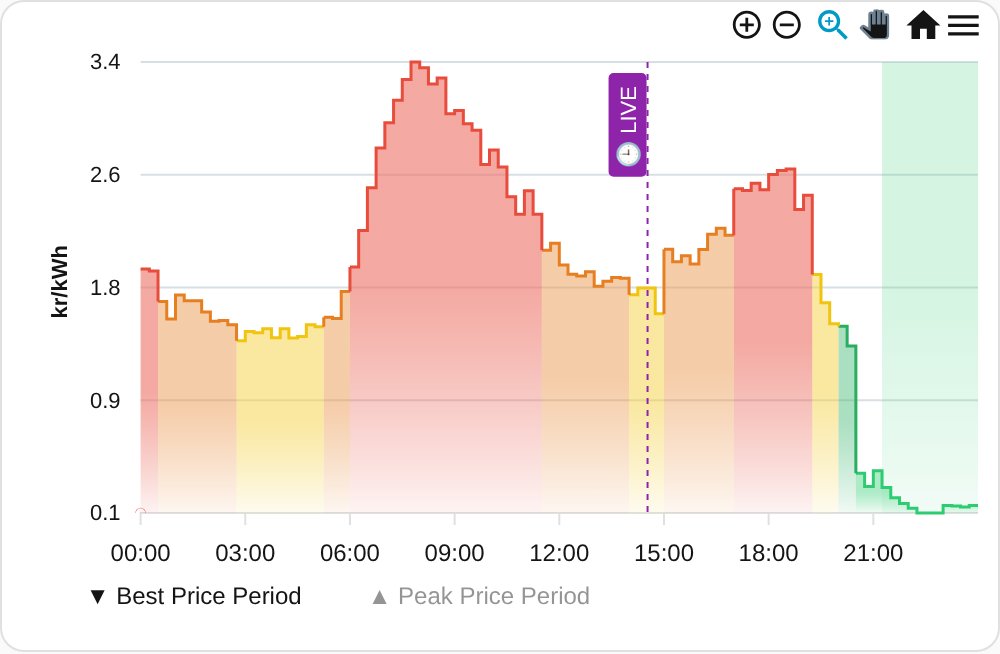
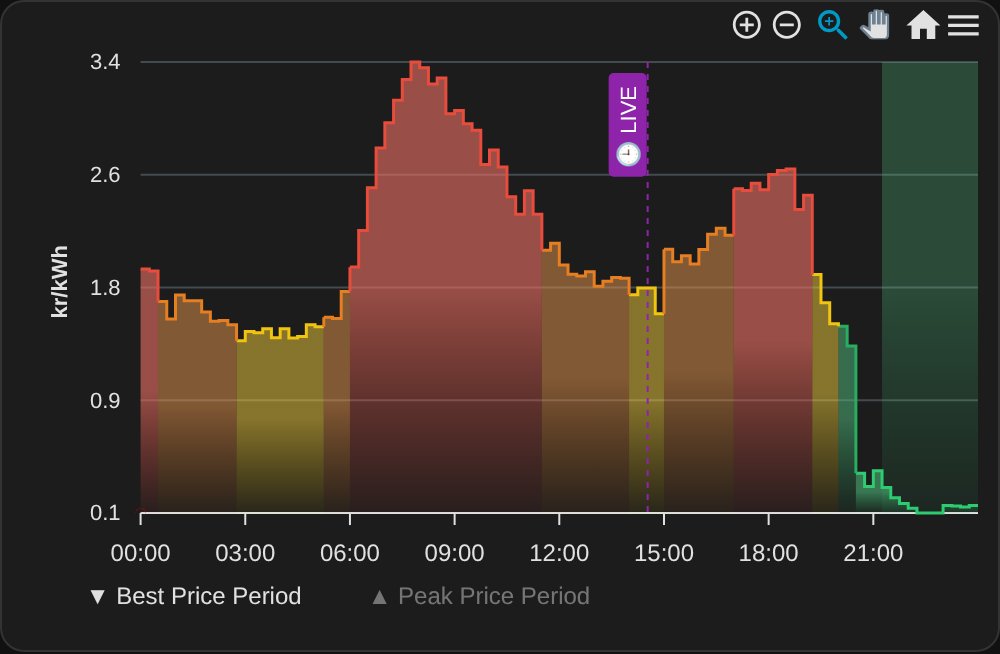
Key features:
- ✅ Static 24-hour view (00:00–23:59)
- ✅ Best price periods as shaded bands
- ✅ Peak price periods available via the legend (hidden until you click ▲ Peak Price Period)
- ✅ Works with ApexCharts Card alone
3. Tomorrow
When to use: Planning tomorrow. Tibber usually publishes tomorrow's prices in the early afternoon; before that, this chart is empty.
Dependencies: ApexCharts Card only
Generate:
Show YAML: Tomorrow
service: tibber_prices.get_apexcharts_yaml
data:
    entry_id: YOUR_CONFIG_ENTRY_ID
    day: tomorrow
    level_type: level
    highlight_best_price: true
    highlight_peak_price: true
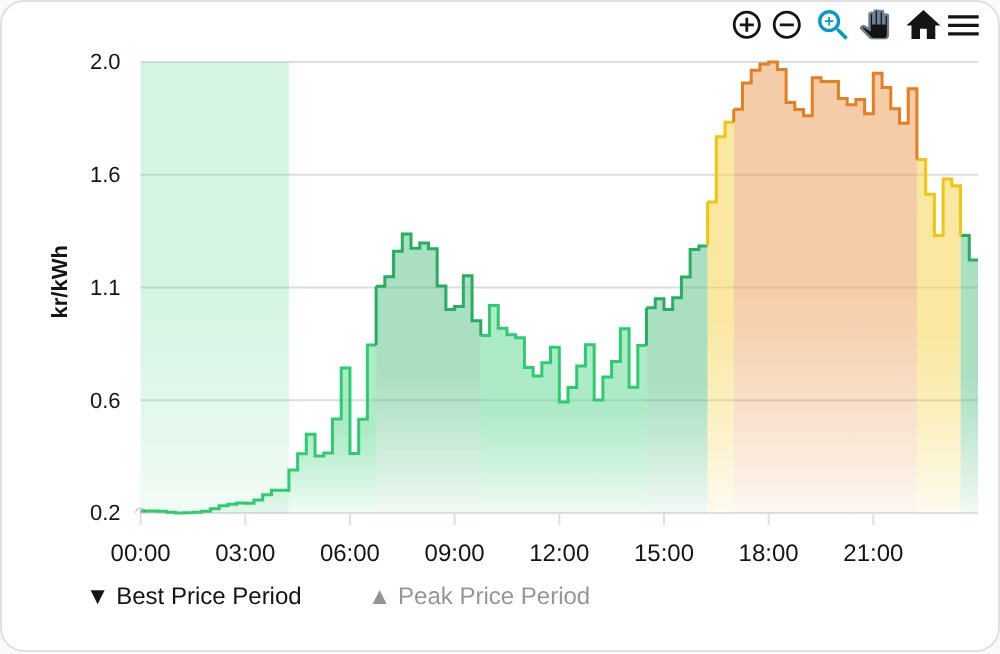
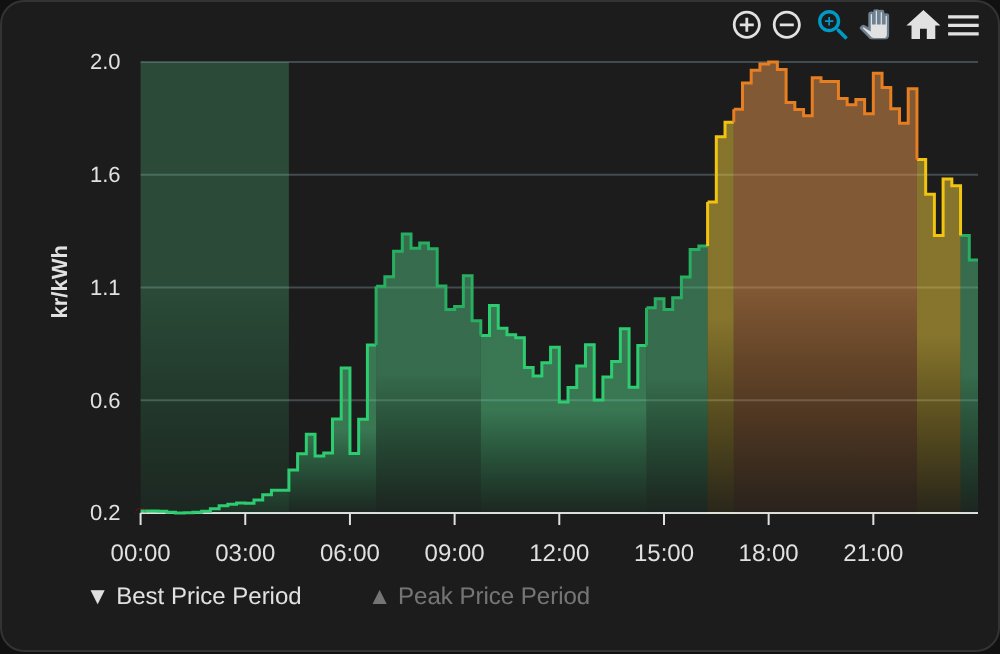
Looks like Today, with tomorrow's data. day: yesterday works the same way.
Wrap the card in a visibility condition on the Tomorrow's Data Available binary sensor (tomorrow_data_available), so the dashboard doesn't show an empty chart in the morning.
4. 2 days
When to use: The big picture across two days.
Dependencies: ApexCharts Card + Config Template Card
Generate:
Show YAML: 2 days
service: tibber_prices.get_apexcharts_yaml
data:
    entry_id: YOUR_CONFIG_ENTRY_ID
    day: rolling_window
    level_type: level
    highlight_best_price: true
    highlight_peak_price: true
Screenshot:
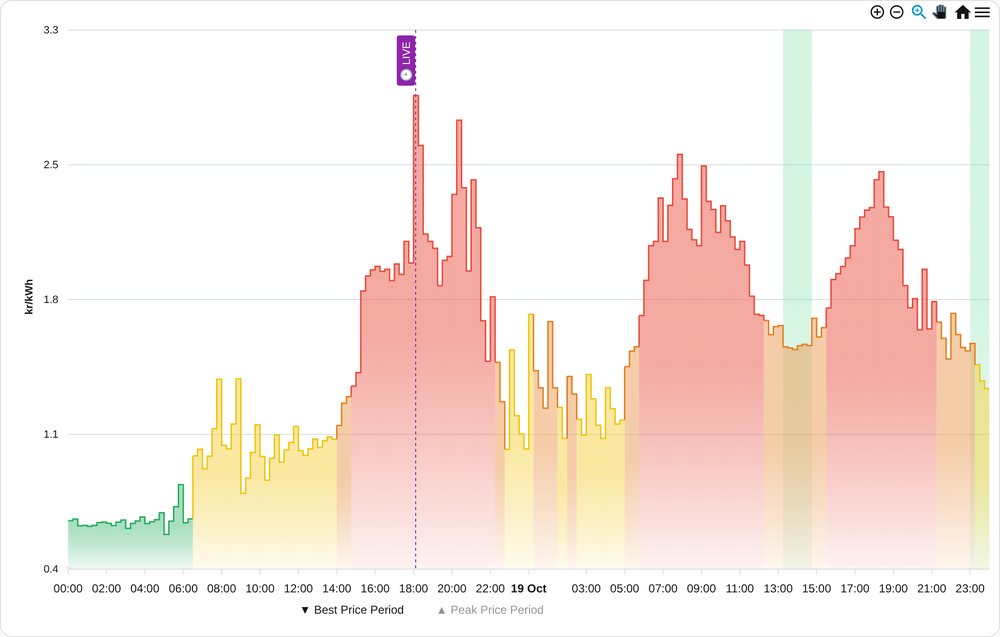
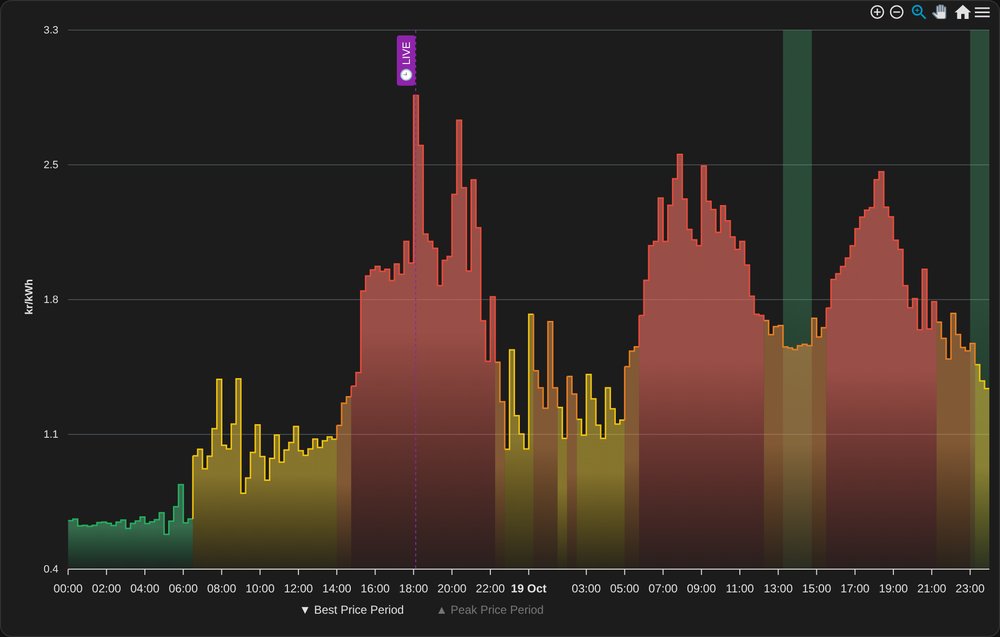
Key features:
- ✅ Always 48 hours: yesterday + today before tomorrow's prices arrive, today + tomorrow after
- ✅ Switches automatically when tomorrow's prices arrive (usually early afternoon)
- ✅ Peak price periods available via the legend (hidden by default)
- ✅ Dynamic Y-axis scaling via the
chart_metadatasensor
Comparison: Level Type Options
level_type decides how the chart is colored.
Level (5 series), recommended
The price level that Tibber assigns to every interval, the same value the price level sensors show:
- VERY_CHEAP (green) and CHEAP (dark green)
- NORMAL (yellow)
- EXPENSIVE (orange) and VERY_EXPENSIVE (red)
Best for: Dashboards that also show the price level. Chart and sensors then never disagree.
Rating level (3 series), the action's default
The integration's own rating relative to the trailing 24-hour average, using your thresholds (default ±10 %, see Price Rating):
- LOW (green): below the average by more than the low threshold
- NORMAL (yellow): in between
- HIGH (red): above the average by more than the high threshold
Best for: A simpler three-color view tuned to your own thresholds.
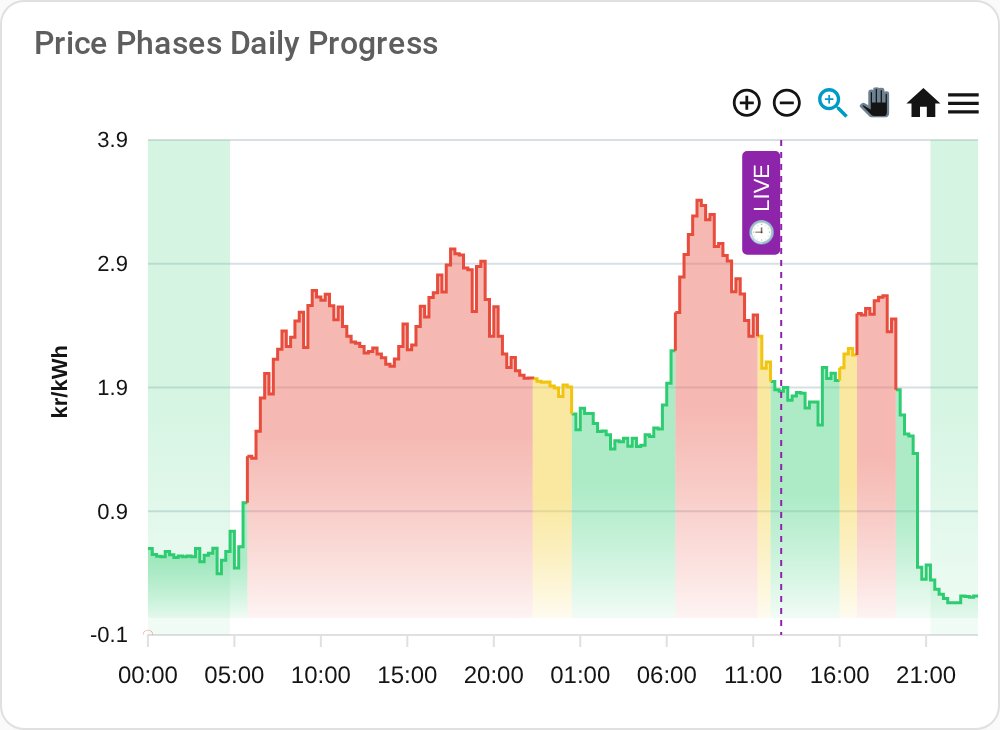
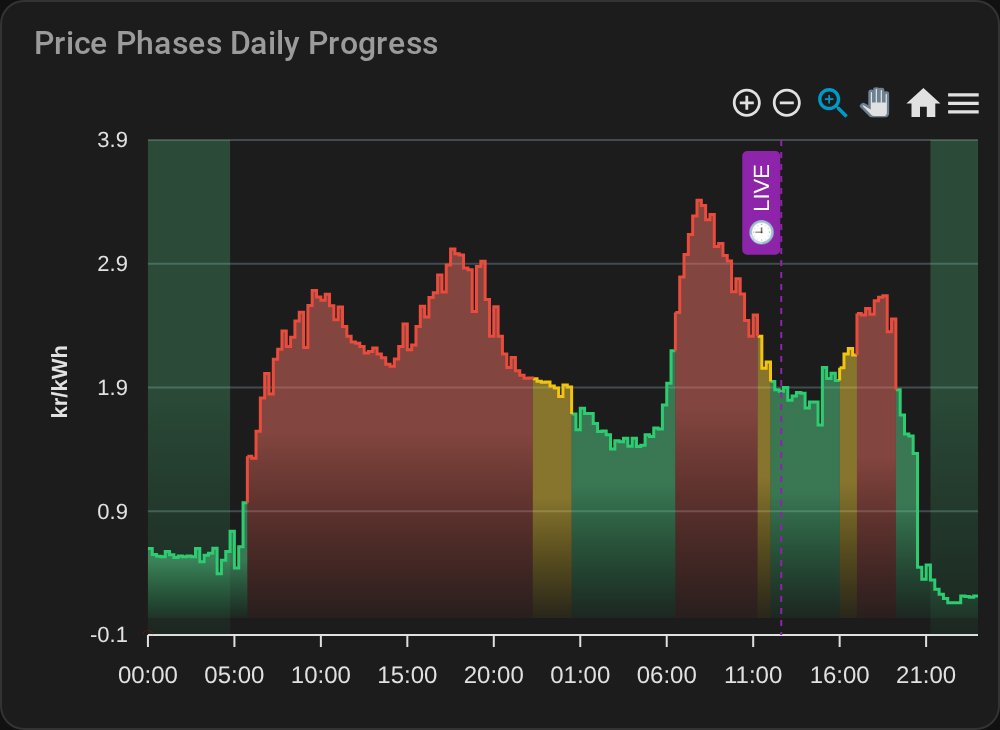
Dynamic Y-Axis Scaling
The Outlook and 2 days modes automatically use the chart_metadata sensor for optimal scaling:
Without chart_metadata sensor (disabled):
Show chart illustration: Without Chart Metadata
┌─────────────────────┐
│                     │ ← Lots of empty space
│      ___            │
│  ___/   \___        │
│_/           \_      │
├─────────────────────┤
0              100 ct
With chart_metadata sensor (enabled):
Show chart illustration: With Chart Metadata
┌─────────────────────┐
│      ___            │ ← Y-axis fitted to data
│  ___/   \___        │
│_/           \_      │
├─────────────────────┤
18             28 ct   ← Optimal range
Requirements:
- ✅ The
sensor.<home_name>_chart_metadatamust be enabled (it's enabled by default!) - ✅ That's it! The generated YAML automatically uses the sensor for dynamic scaling
Important: Do NOT disable the chart_metadata sensor if you want optimal Y-axis scaling in the Outlook and 2 days modes!
Note: Fixed day views (today, tomorrow) use ApexCharts' built-in auto-scaling and don't require the metadata sensor.
Best Price Period Highlights
When highlight_best_price: true, vertical bands overlay the chart showing detected best price periods:
Example:
Show chart illustration: Best Price Period Highlights
Price
  │
30│           ┌─────────┐  Normal prices
  │           │         │
25│     ▓▓▓▓▓▓│         │  ← Best price period (shaded)
  │     ▓▓▓▓▓▓│         │
20│─────▓▓▓▓▓▓│─────────│
  │     ▓▓▓▓▓▓
  └─────────────────────── Time
       06:00  12:00  18:00
Features:
- Automatic detection based on your configuration (see Period Calculation Guide)
- Tooltip shows "Best Price Period" label
- Only appears when periods are configured and detected
- Can be disabled with
highlight_best_price: false
Peak Price Period Highlights
With highlight_peak_price: true, the chart gets a legend with ▼ Best Price Period and ▲ Peak Price Period. Peak price periods start hidden; click the legend entry to show them as red bands. This keeps the default view calm while the information stays one click away.
The examples above enable it for Today, Tomorrow and 2 days. For Outlook it's usually not worth it: the coming hours are short enough to read directly.
Prerequisites
Required for All Modes
- ApexCharts Card: Core visualization library
Show shell command: Prerequisite for All Modes
# Install via HACS
HACS → Frontend → Search "ApexCharts Card" → Download
Required for Outlook and 2 days
- Config Template Card: Enables dynamic configuration
Show shell command: Config Template Card
# Install via HACS
HACS → Frontend → Search "Config Template Card" → Download
Note: Today and Tomorrow work with ApexCharts Card alone.
Tips & Tricks
Customizing Colors
Edit the colors array in the generated YAML:
Show YAML: Custom Color Palette
apex_config:
    colors:
        - "#2ecc71"  # VERY_CHEAP (rating_level: LOW)
        - "#27ae60"  # CHEAP
        - "#f1c40f"  # NORMAL
        - "#e67e22"  # EXPENSIVE
        - "#e74c3c"  # VERY_EXPENSIVE (rating_level: HIGH)
Changing Chart Height
Add to the card configuration:
Show YAML: Custom Chart Height
type: custom:apexcharts-card
graph_span: 48h
header:
    show: true
    title: My Custom Title
apex_config:
    chart:
        height: 400  # Adjust height in pixels
Switching Between Modes with Tabs
Instead of placing several charts below each other, put them into tabs. TabDeck Card (HACS) supports per-tab visibility, so the Tomorrow tab only appears once tomorrow's prices exist:
Show YAML: Chart Modes as Tabs
type: custom:tabdeck-card
# Build a tab when it's opened, drop it when it's left. Without this, the peak price
# overlay shows up although it should start hidden (ApexCharts hides it only once,
# right after the chart's first data load).
lazy: true
unmount_hidden: true
tabs:
    - name: Outlook
      icon: mdi:chart-timeline-variant-shimmer
      card:
          # ... generated YAML for day: rolling_window_autozoom
    - name: Today
      icon: mdi:calendar-today
      card:
          # ... generated YAML for day: today
    - name: Tomorrow
      icon: mdi:calendar-arrow-right
      visibility:
          - condition: state
            entity: binary_sensor.<home_name>_tomorrow_s_data_available
            state: "on"
      card:
          # ... generated YAML for day: tomorrow
    - name: 2 days
      icon: mdi:calendar-range
      card:
          # ... generated YAML for day: rolling_window
Combining with Other Cards
Wrap in a vertical stack for dashboard integration:
Show YAML: Vertical Stack Integration
type: vertical-stack
cards:
    - type: entity
      entity: sensor.<home_name>_current_electricity_price
    - type: custom:apexcharts-card
      # ... generated chart config
Next Steps
- Chart Actions Guide: Complete documentation of
get_apexcharts_yamlparameters - Chart Metadata Sensor: Learn about dynamic Y-axis scaling
- Period Calculation Guide: Configure best price period detection
💬 Comments are page-specific. For a new question or idea, open a dedicated Discussion on GitHub so it gets its own thread and proper visibility.